What the Orange Dot on Samsung Galaxy Watch Screens Indicates
The orange dot on your Samsung Galaxy Watch is a helpful alert for unread notifications. Learn how to manage this indicator and understand other on-screen symbols across the Galaxy Watch lineup.
· 7 min read
This article was generated with AI from the sources it names. Report an error
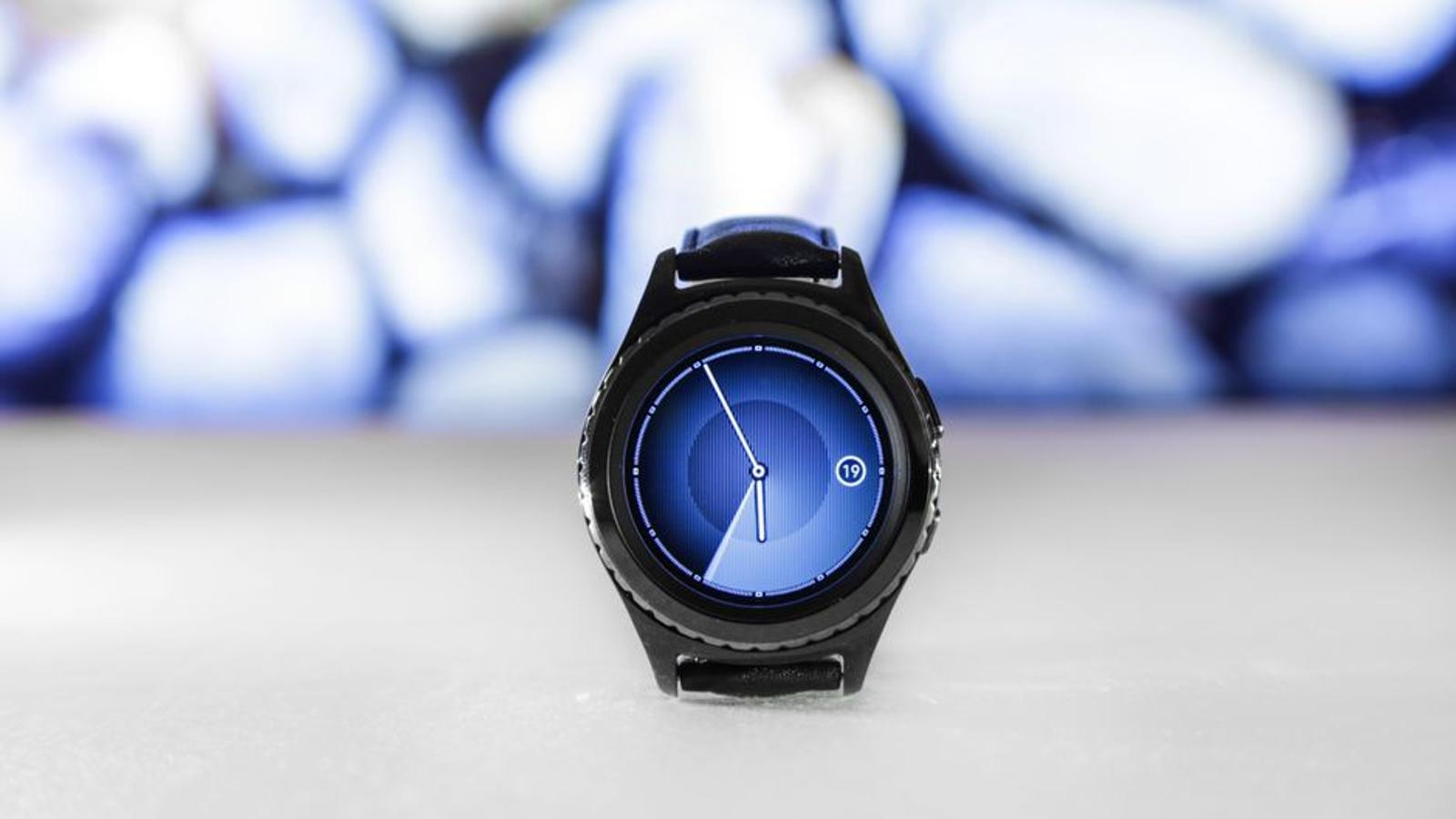
Samsung designs its wearable software to balance rich notification support with the physical constraints of compact smartwatch displays. Across modern hardware generations, including the Galaxy Watch 8, Galaxy Watch 9, and Galaxy Watch Ultra 2, the company relies on subtle visual cues rather than obtrusive pop-ups to keep wearers informed. Understanding these visual symbols ensures users can quickly interpret device alerts without interrupting their daily activities.
The Orange Dot Notification Indicator
The most recognizable status marker on any Samsung Galaxy Watch is the small orange dot that rests on the far left edge of the display. This subtle visual indicator serves a singular, clear purpose: it informs the user that one or more unread notifications are waiting to be reviewed. Because watch faces prioritize battery efficiency and aesthetic cleanliness, the indicator provides a persistent yet non-intrusive reminder.
Whenever a connected smartphone pushes an alert—such as an incoming text message, an email, or an application alert—the orange dot appears automatically. The dot will remain visible on the ambient display and active watch face until the user interacts with the notifications. As soon as all pending notifications have been viewed or cleared, the dot promptly vanishes, restoring the clean appearance of the chosen watch face.
Under certain conditions, users might notice that the dot changes color from orange to red. A red dot in the same left-hand position indicates an urgent notification that requires immediate attention, such as an emergency broadcast, high-priority system alert, or a critical update. Recognizing the distinction between standard updates and time-sensitive alerts allows wearers to triage incoming information at a glance.
Interacting With and Clearing Notifications
Interacting with unread notifications on the Galaxy Watch interface is designed to be intuitive and fast. From the primary watch face, swiping from the left edge toward the right side reveals the notification cards in reverse chronological order. Each incoming alert displays the sender, originating application, and a brief snippet of content directly on the circular panel.
To dismiss individual alerts, users can swipe upward on any specific notification card, which permanently removes it from the queue and clears the corresponding alert from the paired smartphone. Alternatively, swiping through the entire stack to the far left reveals a dedicated "Clear all" button. Tapping this option dismisses every outstanding message at once, immediately clearing the orange dot from the display.
Users can also customize how notifications behave when the watch wakes up. By default, incoming messages will not turn on the display unless explicitly configured within system preferences. For wearers who prefer complete privacy, disabling lock-screen previews ensures that sensitive message content remains hidden until the card is actively tapped and verified by the wearer.
How to Disable the Notification Indicator
While many users appreciate having a continuous visual alert for unread messages, others prefer an entirely clean watch face. Samsung allows users to turn off the orange dot indicator altogether without silencing alerts or stopping vibrations. Disabling the feature can be accomplished directly from the wearable hardware or via the companion mobile application.
To turn off the indicator directly on the smartwatch, open the app launcher by swiping up from the bottom of the home screen. Tap the gear-shaped Settings icon, scroll down, and select the Notifications menu. From there, enter the Advanced Settings submenu and locate the toggle switch labeled "New notification indicator on watch face." Toggling this setting off removes the dot permanently.
Users can also adjust this setting from a paired mobile device using the Galaxy Wearable application. After launching the app on a connected Samsung phone, navigate to Watch Settings and tap the Notifications category. Inside the Advanced notification settings page, switch off "New notification indicator on watch face" to sync the preference to the wearable immediately.
Even with the visual dot disabled, incoming alerts remain fully functional across the device. The smartwatch will continue to vibrate or play auditory chimes according to the active sound profile whenever new alerts arrive. Wearers can still swipe right from the watch face at any time to review and respond to incoming communications at their convenience.
Network and Bluetooth Connection Indicators
Aside from notification dots, Samsung smartwatches feature several top-mounted status icons that communicate network health. One of the most common symbols is a small smartphone icon crossed out with a diagonal slash. This indicator appears centered near the top edge of the screen whenever the Galaxy Watch loses its direct Bluetooth connection to the paired mobile device.
Bluetooth disconnections typically happen when the user walks out of wireless range or toggles off Bluetooth on their phone. When this occurs, the smartwatch will attempt to bridge the communication gap using alternative network interfaces. During this disconnected state, certain background synchronization tasks pause until a stable data path is re-established.
If the smartwatch successfully connects to a known Wi-Fi network or mobile data connection while away from the phone, a cloud icon appears inside a rounded rectangle at the top edge. This indicator signifies that the Galaxy Watch is operating in Remote Connection mode. In this state, wearers can still receive mirrored notifications, stream media, and check emails over the internet despite the absent Bluetooth link.
When a cellular-capable model relies entirely on independent LTE service, signal bars appear at the top of the interface instead. Monitoring these connectivity markers helps users quickly troubleshoot communication interruptions, battery drain spikes, and synchronization delays between the watch and companion smartphone.
Device Security and Power Status Symbols
Security is a fundamental component of the Samsung wearable ecosystem, especially when mobile payment platforms like Samsung Wallet are enabled. Whenever the Galaxy Watch detects that it has been removed from the wearer's wrist, the device automatically engages a security lock to protect sensitive personal data and payment cards.
A locked status is represented by a small padlock icon centered at the very top of the watch display. As long as this padlock is visible, access to notifications, biometric tracking metrics, and applications remains restricted. Entering the configured numeric PIN or unlock pattern removes the lock and hides the icon until the next time the watch is taken off.
Power management symbols also occupy the top portion of the display under specific operating parameters. When the device enters Power Saving mode, a distinctive battery icon appears to signal that background syncing, screen brightness, and processor clock speeds have been constrained to prolong battery longevity. This feature allows users to preserve essential functions during extended trips.
Similarly, entering Airplane mode introduces a static airplane icon at the top of the screen, indicating that Bluetooth, Wi-Fi, and cellular radios are disabled. Understanding these security and operational icons allows wearers to immediately identify why their watch might be behaving differently or restricting certain background features.
Active Task and Media Indicators
Samsung Galaxy Watches also utilize dynamic, interactive icons along the bottom edge of the screen to represent active background processes. When an audio track, podcast, or video is playing on either the smartwatch or the connected smartphone, a vibrant blue musical note icon appears at the lower portion of the screen.
Tapping this blue music note acts as a shortcut, instantly launching the active media controller overlay. From this interface, users can adjust volume levels, pause tracks, or skip forward without having to manually open the dedicated media app from the launcher. Once audio playback stops completely, the icon fades from the display.
Another critical active task indicator is a bright green phone icon that surfaces at the bottom of the screen during incoming and active voice calls. Tapping this green symbol returns the wearer directly to the active call screen, providing quick access to the digital keypad, mute controls, or call termination options.
Additional background tasks, such as active workout tracking through Samsung Health or ongoing timer countdowns, produce similar lower-edge shortcut badges. These interactive indicators allow users to freely navigate the operating system while maintaining instant, one-tap access to active background utilities.
Frequently Asked Questions About Galaxy Watch Screen Indicators
What does the orange dot on a Samsung Galaxy Watch mean?
The orange dot on the left side of the screen indicates unread notifications. It remains visible on models like the Galaxy Watch 8 and Galaxy Watch Ultra 2 until you open and clear all incoming alerts.
Why does a red dot appear instead of an orange dot on the screen?
A red dot indicates that you have received an urgent message requiring prompt attention. While standard notifications trigger an orange dot, the red indicator signals higher priority alerts that should be checked immediately.
How can you turn off the orange notification dot on a Galaxy Watch?
On your watch, navigate to Settings > Notifications > Advanced Settings and toggle off 'New notification indicator on watch face.' You can also disable it in the phone's Galaxy Wearable app under Watch Settings > Notifications > Advanced notification settings.
What do the common status icons at the top and bottom of the display mean?
A phone icon with a slash indicates the Bluetooth link is disconnected, while a cloud icon means the watch is connected via Wi-Fi or LTE. A top padlock confirms the watch is locked and requires a PIN, a bottom blue note controls media playback, and a green phone icon signals an active call.
Related articles