How Samsung's Auto Blocker Protects Galaxy Phones and When to Turn It Off
Samsung's Auto Blocker defends Galaxy phones against unauthorized apps and malicious USB commands. Discover how this built-in security tool works and when you should disable it.
By Tradifox Editorial· 9 min read
This article was generated with AI from the sources it names. Report an error
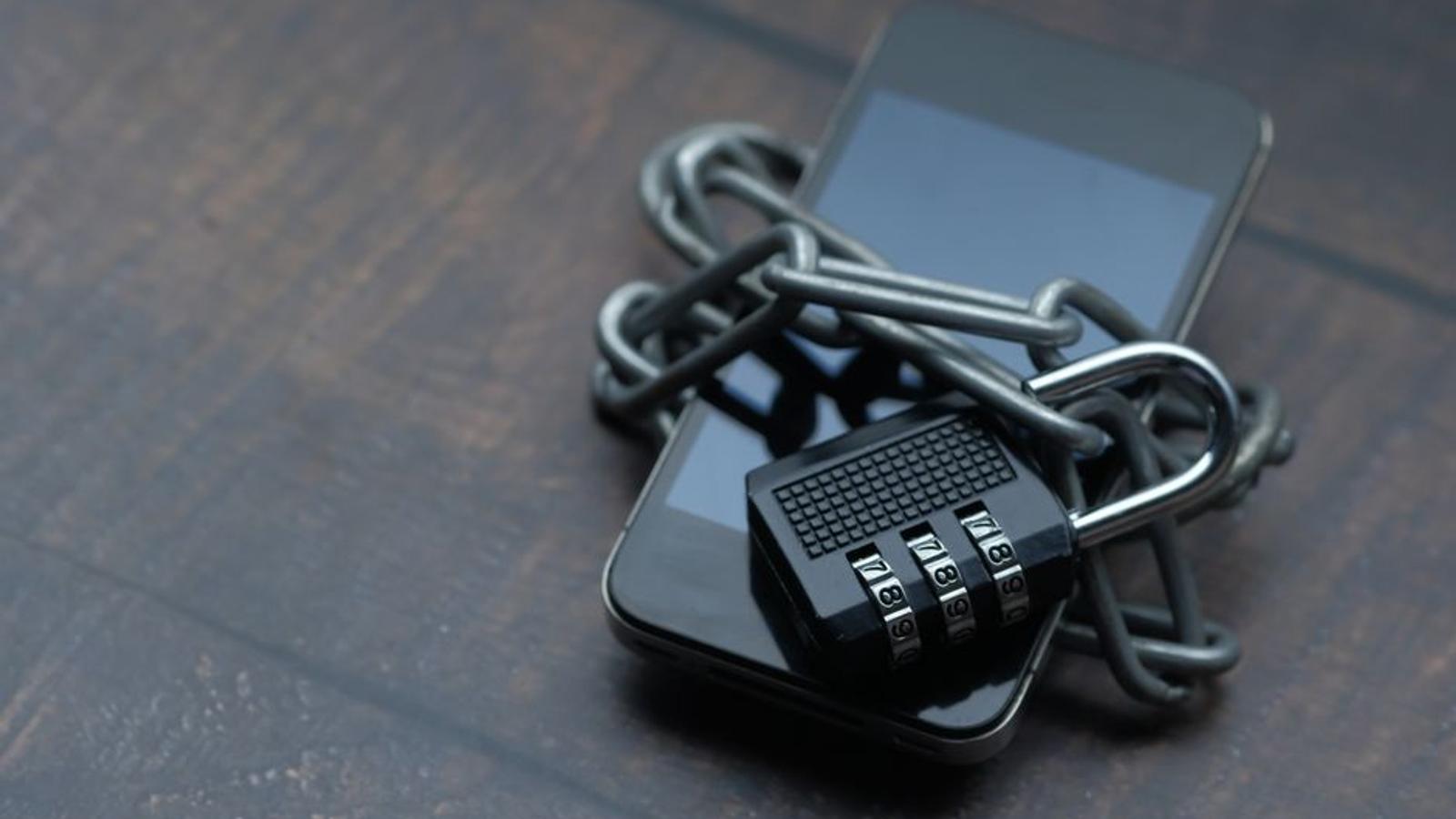
Understanding Samsung Auto Blocker on Galaxy Devices
Samsung introduced Auto Blocker as part of One UI 6.0 to give Galaxy smartphone and tablet users an automated, systemic line of defense against modern cyber threats. Designed to operate silently in the background, the utility manages device vulnerabilities without requiring constant manual configuration. On devices launching with One UI 6.1.1 or later, Samsung turned this feature on by default, marking a transition toward stricter baseline protection.
For general consumers, mobile operating systems present numerous potential attack vectors through software downloads, external physical connections, and incoming media streams. Auto Blocker unifies defenses across these distinct channels into a central, easy-to-manage switch within the primary system settings. This consolidation minimizes the need for users to research separate security utilities or navigate complex technical submenus.
While this built-in protection is beneficial for everyday device safety, it alters the traditional flexibility associated with the Android platform. By establishing rigorous installation controls, Samsung aims to lower the rate of accidental malware infections while prompting a broader discussion regarding digital distribution rights and user autonomy.
Blocking Unauthorized App Sideloading
The central pillar of Auto Blocker is its strict prohibition of unauthorized software installations. When active, the tool prevents the execution and installation of Android package kits (APKs) sourced outside verified distribution platforms. Users are restricted to downloading applications exclusively from the Google Play Store and Samsung's native Galaxy Store.
This restriction targets a common infection route on mobile devices. Sideloading software through web browsers, cloud storage providers, or file managers often bypasses the automated screening layers enforced by major app storefronts. Malicious actors frequently package spyware or banking trojans inside legitimate-looking utility apps distributed through third-party websites.
By enforcing verified channels, Samsung ensures that every installed program has undergone foundational code auditing and policy compliance checks. Even if an end user accidentally confirms a file download prompt while browsing a compromised site, Auto Blocker stops the installation process before any code can run.
Defending Against Malicious USB Commands
Auto Blocker extends beyond software installations by addressing physical hardware risks. Whenever a Galaxy device is linked to an external accessory or power source via USB cable, the tool monitors data interactions to thwart unauthorized control sequences and exploit payloads.
Public charging ports in transit hubs, hotels, and cafes represent a documented security concern commonly referred to as juice jacking. Compromised ports or rogue cables can attempt to issue low-level commands to extract private data or install persistent firmware tools while a device is charging. Auto Blocker isolates the physical link to prevent these automated command executions.
The feature also restricts external software updates initiated via USB connections, ensuring malicious desktop tools cannot flash unauthorized software partitions. This hardware-level protection operates without interrupting standard fast-charging routines or basic battery power delivery.
Advanced Image Screening in Messaging Services
Mobile threats frequently exploit memory handling flaws through zero-click exploits embedded within incoming media. To address this risk, Auto Blocker includes an automated screening engine that analyzes incoming image files across popular messaging platforms. The tool inspects image structures before the host application attempts to render the file on the display panel.
This protective layer monitors traffic across Samsung Messages, Google Messages, Messenger, WhatsApp, and Telegram. If an image contains anomalous binary data or malformed metadata engineered to trigger code execution vulnerabilities, the system filters and suppresses the file automatically. This process protects the host operating system from compromise without demanding user intervention.
Zero-click messaging vulnerabilities are particularly dangerous because they do not require recipients to open an attachment or click a link. By validating image formats prior to runtime decoding, Auto Blocker neutralizes hidden scripts before they can interact with device memory subsystems.
The Maximum Restrictions Security Mode
For individuals handling sensitive business data or operating in hostile network environments, Samsung provides an elevated security tier called Maximum Restrictions. Located within the Auto Blocker settings screen, this mode enforces stringent safeguards designed to counter specialized surveillance tools and sophisticated network intrusion attempts.
When Maximum Restrictions is enabled, the device blocks the activation of device administration apps and corporate work profiles. This measure stops unapproved enterprise management profiles from gaining elevated administrative privileges over personal files, network routing, and hardware sensors.
Network protections expand under this mode as well. The device deliberately disables legacy 2G cellular network connectivity, protecting users from interception tools like IMSI-catchers that force phones onto unencrypted mobile standards. Furthermore, the operating system is blocked from automatically reconnecting to open, unencrypted Wi-Fi access points.
Maximum Restrictions also addresses digital privacy during routine media sharing. When transmitting photographs through supported native apps, the software strips embedded location metadata from the files. This safeguards geographical coordinates, device camera specifications, and timestamps from unauthorized third-party logging.
Sideloading Friction and Industry Controversies
While Auto Blocker offers robust protective benefits, its default activation has introduced friction for power users and independent developers. Software creators that distribute mobile apps outside traditional centralized stores argue that such aggressive blocking mechanisms suppress competition and complicate legitimate software deployment.
A notable legal dispute occurred in 2024 when Epic Games filed an antitrust lawsuit against Samsung and Google. Epic contended that the combination of Auto Blocker and system-level warnings created an arduous multi-step installation workflow—sometimes exceeding 20 separate manual prompts—to install the Epic Games Store on Galaxy devices. Although Epic later withdrew the suit after reaching an agreement with Samsung, the dispute emphasized the industry friction between security policies and open app distribution.
Open-source software distributions and community projects also face hurdles under these default safeguards. Power users who rely on niche developer utilities or regionally restricted tools must intentionally alter their core security settings, presenting a psychological barrier for non-technical individuals.
How to Safely Turn Off Auto Blocker
Users who need to sideload legitimate software or deploy custom development builds can disable Auto Blocker through their device settings. The process requires explicit device authentication to ensure third-party applications or unauthorized individuals cannot secretly lower the phone's defensive posture.
To begin, open the Galaxy device's primary Settings menu and select the Security and privacy submenu. From this screen, tap the Auto Blocker option to view the active safeguards and access the primary configuration controls.
Tap the toggle switch positioned next to the On indicator at the top of the interface. The system will prompt for authentication, requiring the user to scan their registered fingerprint, read their biometric facial data, or enter their lock screen PIN, pattern, or password. Once authenticated, the toggle will switch to Off, permitting manual APK installations.
If the objective is merely to customize specific defenses, users can leave the primary Auto Blocker switch active while toggling off individual components like messaging app protection or USB command screening. This granular approach preserves vital defenses while resolving specific software conflicts.
Temporary Disabling and One UI 8.5 Auto-Reactivation
Leaving security features permanently disabled creates long-term exposure to accidental downloads and untrusted peripherals. To help mitigate this risk, modern versions of Samsung's operating system include automated reactivation tools that reduce prolonged vulnerabilities.
Starting with One UI 8.5, Samsung introduced an automated timer that reactivates Auto Blocker 30 minutes after manual deactivation. This automated return to protective defaults allows users to sideload their desired software or connect a specific developer tool without permanently leaving their device vulnerable to subsequent threats.
For devices running software versions prior to One UI 8.5, users must manually revisit the Settings menu to turn the feature back on. The best operational practice involves disabling Auto Blocker, completing the installation of the verified APK, and immediately returning to the Security and privacy screen to restore system-level monitoring.
Even while Auto Blocker is temporarily switched off, Galaxy devices do not operate without security. Alternative background defenses, notably Google Play Protect, continue to run active scans against installed packages and flag anomalous system behaviors in real time.
Practical Recommendations for Galaxy Users
Determining whether to keep Auto Blocker active depends entirely on how an individual uses their device and their technical risk profile. For the vast majority of consumers who source entertainment, banking, and productivity apps exclusively from Google Play and the Galaxy Store, leaving Auto Blocker permanently enabled provides significant peace of mind.
Users who travel frequently or rely on public charging infrastructure should prioritize the USB protection provided by Auto Blocker. The risk of encountering rogue charging hardware in transit terminals justifies maintaining these safeguards, especially given that regular battery charging continues unimpeded.
Conversely, developers, technical testers, and enterprise users who depend on direct APK installations must manage Auto Blocker deliberately. By understanding how to toggle the feature, relying on the One UI 8.5 timer, or disabling select sub-features rather than the entire suite, Galaxy users can achieve an optimal balance of device autonomy and structural security.
Frequently Asked Questions About Samsung Galaxy Auto Blocker
Is Samsung Auto Blocker turned on by default across all One UI updates?
Samsung introduced Auto Blocker on devices with One UI 6.0 as an optional setting. However, phones shipping with One UI 6.1.1 or later have the feature enabled right out of the box.
Older Galaxy devices that received updates to One UI 6.1.1 retain their prior configuration, meaning the tool remains off unless users manually activate it.
Does Auto Blocker turn itself back on automatically after being disabled?
To disable Auto Blocker, open Settings, select Security and privacy, tap Auto Blocker, and switch the toggle off. Samsung requires user authentication before turning it off.
Devices on One UI 8.5 or newer include an auto-reactivation feature that turns the system back on after 30 minutes to minimize prolonged vulnerability windows.
Is sideloading apps safe on a Samsung Galaxy phone if Auto Blocker is off?
Disabling Auto Blocker does not remove all device protections. Google Play Protect remains running in the background to scan applications for malicious code and harmful behavior.
Galaxy users should still download APK files solely from verified developers to mitigate risks, as third-party app installations no longer face Samsung's gatekeeping checks.
What core protections does Samsung Auto Blocker provide beyond app blocking?
Auto Blocker stops APK installations outside Google Play and the Galaxy Store. It also protects against malicious USB commands from public chargers.
Additionally, it scans incoming message attachments for exploits and offers a Maximum Restrictions tier that blocks 2G networks, cuts device admin apps, and scrubs photo location data.
Related articles