Why Your Smart Speaker Keeps Misunderstanding You (And How to Fix It)
Frustrated by your smart speaker ignoring or misinterpreting commands? Environmental noise, poor device placement, and confusing device names are likely to blame. Here is how to fix it.
By Tradifox Editorial· 9 min read
This article was generated with AI from the sources it names. Report an error
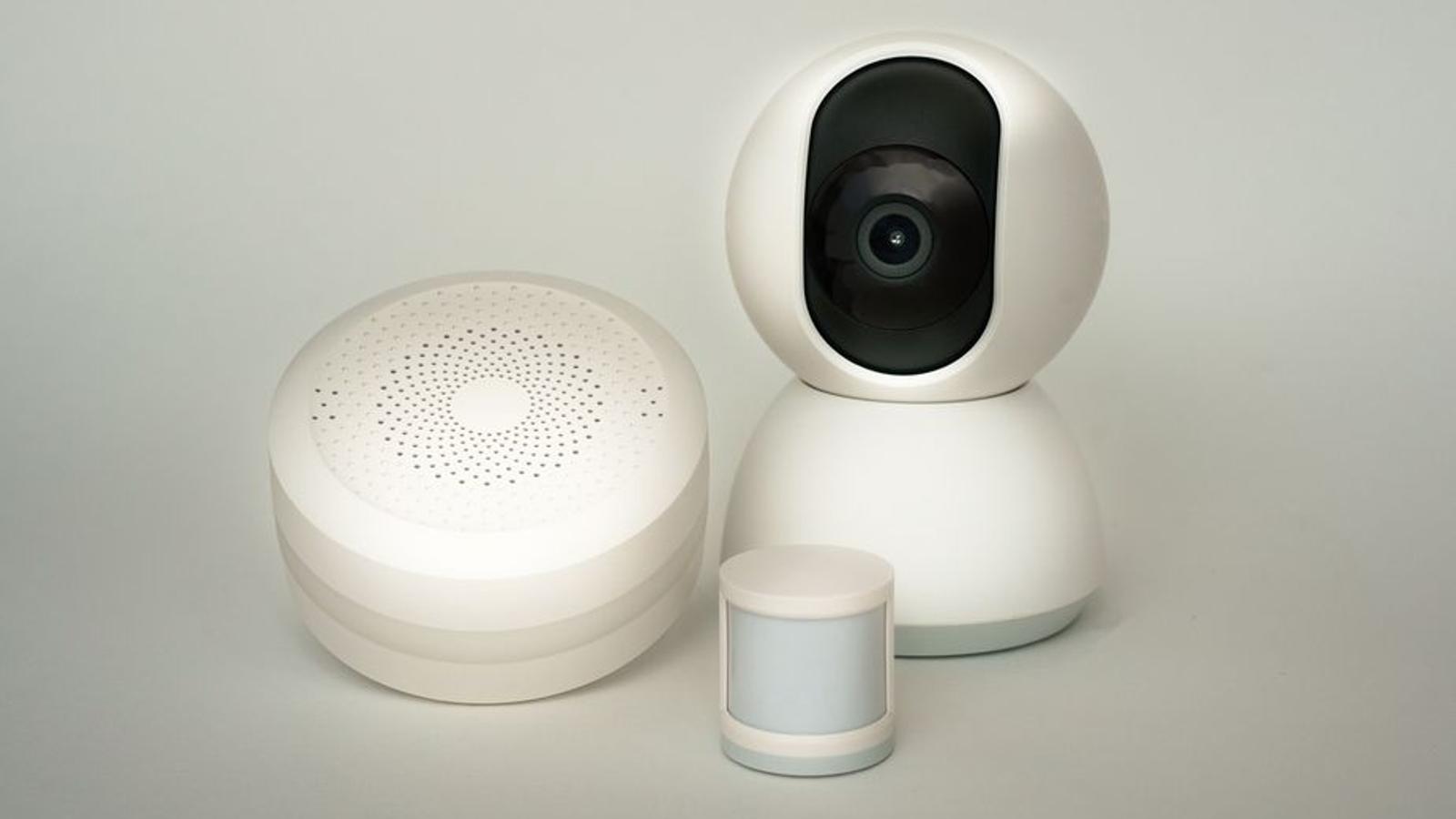
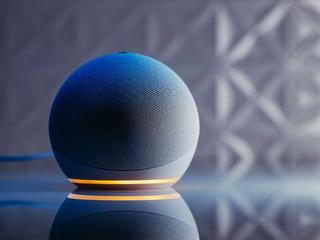
Smart speakers from Amazon, Google, and Apple have evolved into central hubs for the modern connected home. Despite continuous improvements in machine learning and voice processing, everyday communication breakdowns remain a frequent annoyance for owners. When a device misinterprets commands, triggers the wrong appliance, or ignores requests entirely, the root cause is rarely a broken digital assistant. Instead, voice capture failures usually stem from physical environment conflicts, acoustic interference, or missing configuration details.
Optimizing Device Placement and Acoustic Environment
The physical location of a smart speaker dramatically shapes how effectively its internal microphone array can isolate your voice. Placing a device directly against a flat drywall surface or tucked deep within a recessed bookshelf creates pronounced acoustic reflections. These echoes bounce back into the microphones, muddying spoken syllables before the processor can parse them. For optimal clarity, place the speaker on a flat, open surface at least one foot away from surrounding walls.
Proximity to continuous noise sources creates another widespread obstacle for near-field and far-field voice recognition. Smart speakers positioned directly beside kitchen range hoods, whirring desktop fans, dishwashers, or television soundbars struggle to separate your voice from ambient decibels. Even low-frequency hums can saturate microphone diaphragms and degrade incoming audio fidelity. Moving the unit just a few feet away from persistent mechanical humming can immediately improve command accuracy.
Room acoustics and user distance also play an understated role in comprehension rates. In rooms with extensive tile flooring, bare windows, and sparse furnishings, sound waves bounce erratically across hard surfaces. Calling out commands from across a large, reverberant room forces the unit's algorithms to strip out heavy room reverb. If you frequently find yourself shouting from another room, repositioning the speaker closer to primary seating areas will eliminate the need for raised voices.
Physical Maintenance and Hardware Care
Hardware neglect frequently mimics software degradation over extended periods of daily use. Smart speakers rely on tiny, precision-machined pinhole ports to route external acoustic waves directly to their internal microphone elements. Over months of operation, airborne household dust, pet dander, and cooking grease accumulate within these microscopic openings, partially obstructing the sound paths.
Cleaning microphone ports requires gentle, dry handling to avoid causing permanent hardware damage. Never use liquid cleaners, damp sponges, aerosol dusting sprays, or compressed air canisters directly on microphone grilles, as high pressure can puncture delicate internal diaphragms. Instead, gently buff the exterior chassis using a dry, lint-free microfiber cloth. For stubborn particulate lodged in pinholes, light strokes with a clean, soft-bristled detailing brush will safely clear debris.
Managing Multi-Speaker Households and Cross-Talk
As households add multiple speakers across open floor plans, adjacent devices often struggle to determine which unit should handle an incoming request. A command spoken in the dining room may inadvertently trigger a speaker in the kitchen, resulting in conflicting responses or failed actions. Physical separation is the first line of defense; ensure units in adjoining zones are separated by sufficient distance and angled away from shared doorways.
Adjusting internal microphone sensitivity settings helps isolate commands to the intended zone. Inside the Google Home app, owners can navigate to individual speaker settings to dial down wake word sensitivity, preventing units in distant corners from responding. While Apple and Amazon handle sensitivity dynamically, physical orientation away from main hallways prevents unintended activations.
Amazon Echo environments offer another powerful remedy through customizable wake words. Rather than leaving every device set to the universal default trigger word, assign unique names to units that share acoustic space. Switching an office unit to "Echo" or "Computer" while keeping the kitchen set to "Alexa" eliminates cross-room triggering entirely. You can update this preference under the Device Settings menu within the Alexa mobile app.
Preventing Device Name Collisions and Smart Home Errors
Smart home voice comprehension frequently falls apart not because the speaker failed to hear you, but because the software cannot decipher ambiguous naming schemes. When multiple connected accessories share similar titles, such as "Living Room Lamp," "Living Room Light," and "Reading Light," automated routing engines struggle to choose the correct target. This ambiguity frequently results in frustrating error tones or completely incorrect devices powering on.
Establishing a strict naming hierarchy prevents downstream smart home confusion across all major platforms. Assign distinct, multi-word titles to individual switches and plugs, such as "Overhead Chandelier" or "Corner Floor Lamp," rather than generic descriptors. Always avoid using the specific room name inside the device label itself, as voice assistants aggregate rooms automatically. For instance, naming a bulb "Kitchen Ceiling Light" inside a room already categorized as "Kitchen" often creates confusing command redundancy.
Organizing linked hardware into designated virtual rooms within your ecosystem app further streamlines voice interactions. When a smart speaker and smart lights are assigned to the exact same room profile, saying "Turn off the lights" automatically isolates the action to that specific room. Without proper spatial grouping, the assistant may query your entire home inventory or inadvertently plunge the whole house into darkness.
Calibrating Voice Profiles on Amazon Alexa
Amazon Echo hardware delivers significantly higher comprehension when individual household members configure dedicated Voice ID profiles. Alexa uses acoustic modeling to adapt to your specific pitch, cadence, and accent over time, helping the system isolate your speech from background chatter. Creating a profile also unlocks personalized calendar updates, custom calling, and tailored media playback.
To configure a custom Voice ID profile, open the Alexa app on your mobile device and select More from the bottom navigation bar. Navigate through Settings, select Account Management, and tap Your Profile & Family. From there, choose your name, tap Voice ID, and follow the on-screen prompts to recite several standardized calibration phrases aloud. Ensure the room remains completely quiet during this setup process so the assistant captures an uncorrupted vocal baseline.
If an existing Alexa profile starts mishearing commands after illness, vocal changes, or room rearrangement, recalibrating the profile is straightforward. Within the same Voice ID menu, select the option to delete your current voice profile and create a fresh one from scratch. Rebuilding this data set clears out outdated acoustic assumptions and restores crisp recognition accuracy.
Training Google Assistant Voice Match
Google Home hardware relies on its proprietary Voice Match engine to differentiate between household members and improve command execution. Google's framework supports up to six distinct user profiles on a single shared speaker array, providing individualized media queues and personal schedule access. Training the system on your unique voice patterns sharpens keyword detection even in acoustically challenging spaces.
To initiate Voice Match training, open the Google Home app on an Android or iOS device connected to your local network. Tap Settings, choose Google Assistant, and select Voice Match from the configuration list. Select your target smart speakers and follow the prompts to recite varied phrasing patterns, including both "Hey Google" and "OK Google" variations. Speaking in your natural, conversational cadence during this process ensures the model reflects real-world conditions.
Google Home also allows users to retrain their voice recognition models if accuracy begins to slip over time. Under the Voice Match management menu, choose the option to retrain your voice model to record updated audio samples. If background noise was present during the initial configuration, retraining in a dead-silent room often remedies chronic recognition failures immediately.
Optimizing Apple HomePod and Siri Comprehension
Apple HomePod hardware utilizes advanced beamforming microphone arrays, but software settings still play a crucial role in overall voice pickup. HomePod relies heavily on Siri settings tied to your personal Apple Account, meaning phone-level permissions directly influence your speaker's behavior. Ensuring your mobile device has personal voice parameters synchronized to iCloud is the vital first step.
To enable personalized recognition on HomePod, open the Apple Home app on your iPhone or iPad. Tap the More button in the upper right corner, select Home Settings, and tap your user profile name under the People section. Verify that the toggle for "Recognize My Voice" is enabled, alongside "Personal Requests." If this setting appears greyed out, navigate to your iPhone's primary Settings app, select Siri, and ensure "Listen for 'Siri' or 'Hey Siri'" is active on your handheld device.
Siri voice synchronization issues can occasionally occur if cloud credentials become desynchronized between household devices. To resolve this, open Settings on your iPhone, tap your name at the top to access Apple Account details, select iCloud, and verify that Siri syncing is toggled on. This synchronization ensures any voice recognition refinements recorded by your phone automatically propagate to every HomePod on the local network.
Troubleshooting Persistent Hardware and Network Glitches
When acoustic cleanup, room reorganization, and voice calibration fail to resolve poor comprehension, underlying network or operating system glitches may be responsible. Like any dedicated computational hardware, smart speakers run embedded operating systems that can experience buffer bloat, memory leaks, or corrupted cache files over prolonged uptime. These background bottlenecks can delay voice processing and manifest as missed commands.
The simplest and most effective technical remedy is a thorough hardware power cycle. Unplug the smart speaker's power adapter directly from the wall outlet and leave the unit completely unpowered for at least sixty seconds. This duration ensures all internal capacitors fully drain, clearing volatile system memory and terminating stuck background processes. Reconnect the power cable and allow the device two full minutes to re-establish a clean local Wi-Fi handshake.
If chronic misunderstandings persist after a power cycle, performing a full factory reset serves as the definitive last resort. Reset procedures vary by platform: Amazon Echo typically requires holding the Action or Microphone Off buttons, Google Home uses an underside reset button or mute switch hold, and HomePod requires pressing the top touch surface until it chimes three times. Keep in mind that a factory reset erases all saved network profiles, paired accessories, and custom preferences, requiring you to set up the speaker from scratch as a brand-new device.
Frequently Asked Questions About Smart Speaker Troubleshooting
How far should a smart speaker be placed from walls and noise sources?
Maintain at least one foot of clearance from nearby walls to minimize acoustic reflections. Position the device away from televisions, fans, or audio systems, and clean the microphones with a dry cloth.
How can you stop multiple smart speakers from responding at the same time?
Physical separation is essential. For Amazon Echo devices, assign distinct wake words such as 'Echo' or 'Computer'. You can also lower microphone sensitivity within the companion app settings.
When should you perform a factory reset on an unresponsive smart speaker?
First attempt a standard power cycle by unplugging the unit for one full minute. A factory reset should remain a last resort because it wipes all personalized configurations, voice profiles, and paired devices.
Why does your smart speaker trigger the wrong connected appliance?
Assign distinctive multi-word names to accessories rather than generic labels. Grouping appliances into designated digital rooms within your ecosystem app prevents accidental activation across rooms.
Related articles