How to Make and Receive Phone Calls on a Windows PC
Learn how to seamlessly make and receive standard voice calls on your Windows 11 computer by pairing your smartphone via Bluetooth and Microsoft Phone Link.
· 11 min read
This article was generated with AI from the sources it names. Report an error
Introduction to Calling on Windows 11
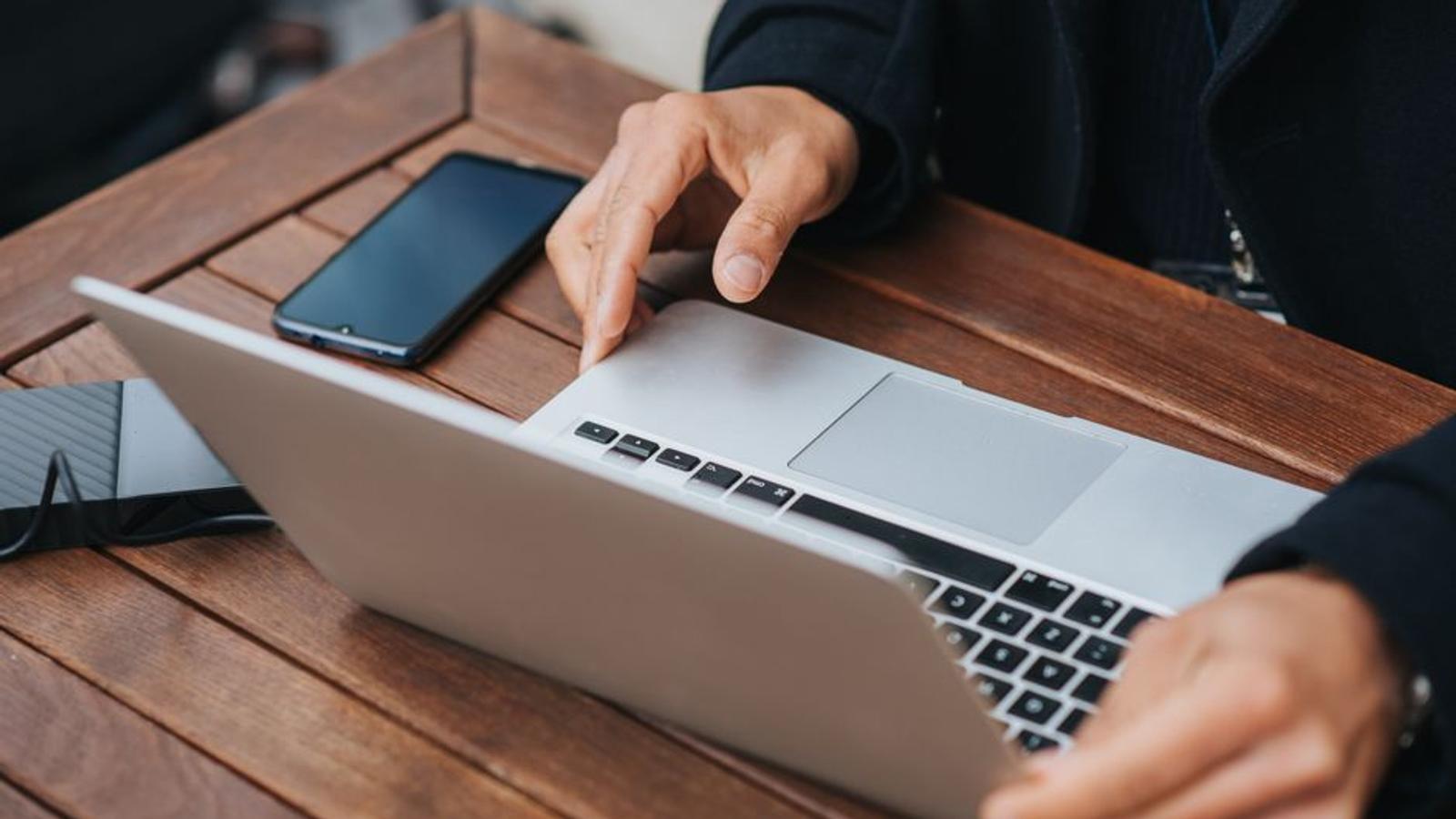
Microsoft integrates mobile connectivity into Windows 11 through the Phone Link application, providing desktop access to cellular voice calls without requiring users to pick up their physical smartphones. By bridging native cellular networks directly to personal computers, the platform allows individuals to maintain focus during desktop workflows. Engadget notes that this setup offers a seamless multitasking environment, reducing interruptions while handling calls, reading SMS threads, and tracking inbound alerts.
Unlike traditional standalone Voice over IP (VoIP) platforms such as Skype or Teams, Phone Link relies on your existing smartphone line and carrier subscription. The computer serves as a peripheral hands-free hub, relaying voice audio and control signals directly between Windows and the mobile handset. This setup eliminates the need for separate calling credits or specialized business accounts, making desktop calling accessible to standard mobile consumers.
To operate this feature reliably, Windows users must establish an active Bluetooth link between their computer and mobile device. While primary data synchronization for messages and device telemetry occurs over local Wi-Fi or cellular connections, real-time voice streaming requires local Bluetooth audio profiles. Consequently, both devices must feature functional Bluetooth radios and remain within close physical proximity throughout active conversations.
Before initiating the pairing process, users should verify that their desktop software remains completely up to date. Microsoft frequently updates Phone Link to resolve connection bugs and broaden hardware compatibility. Roger Fingas of Engadget recommends opening the Microsoft Store, navigating directly to the Downloads tab, and checking for updates to confirm both the operating system and Phone Link contain the latest stability patches.
System Requirements and Preparation
The fundamental hardware prerequisite for desktop calling on Windows 11 is an integrated or external Bluetooth radio supporting modern hands-free profiles. Without active Bluetooth, the Phone Link application can synchronize text messages and system alerts, but the voice calling interface will remain disabled. Desktop users without onboard Bluetooth hardware will need to connect a compatible USB Bluetooth adapter to complete the pairing chain.
On the mobile side, Android users must run Android 7.0 or later, while Apple iPhone owners require iOS 14 or higher to interface with Windows 11. The companion mobile software, Link to Windows, is readily available through both the Google Play Store and the Apple App Store. Certain modern Android devices, including selected Samsung Galaxy handsets, feature the Link to Windows service pre-installed directly inside the system firmware.
Network connectivity plays a parallel operational role alongside Bluetooth. While Bluetooth manages the live audio stream during an active call, system notifications and contact database indexing rely on Wi-Fi or mobile data connections. Connecting both the Windows computer and the smartphone to the same private local network minimizes latency and ensures prompt desktop call signaling when inbound rings arrive.
Audio input and output devices connected to the computer also require initial attention. While built-in laptop microphones and speakers can handle basic calls, background noise and acoustic echo frequently degrade audio fidelity. Engadget emphasizes using a dedicated wired or wireless headset equipped with a microphone to prevent nearby colleagues from overhearing conversations and to guarantee uninterrupted audio clarity.
Initial Pairing Workflow
To begin configuring the desktop calling bridge, launch the Phone Link application from the Windows 11 Start menu or search bar. Upon initial launch, the application displays a setup screen prompting the user to select either Android or iPhone as the target mobile platform. Selecting the appropriate operating system generates a tailored setup workflow and displays an on-screen QR code.
Next, install and launch the Link to Windows mobile application on your smartphone. The mobile app will request camera permissions to scan the pairing QR code visible on the Windows monitor. Pointing your phone's camera at the computer display establishes an initial secure cryptographic handshake between the Microsoft account session on Windows and the mobile device.
Once the QR code is scanned, both devices will display matching numerical pairing codes. Users must verify that the digits shown on the desktop monitor match the sequence displayed on the smartphone screen before confirming the prompt. Confirming this code establishes an encrypted pairing profile across both platforms, paving the way for Bluetooth negotiation.
After finalizing the digital handshake, Phone Link initiates a standard Bluetooth discovery scan to link the two radios directly. A pop-up dialog will appear on both the PC and the phone requesting permission to pair. Confirming these system dialogs binds the desktop hardware to the phone's hands-free audio profile, bringing the calling subsystem online.
Pairing and Configuring an Android Device
Android integration within Phone Link offers an expansive set of synchronized features, provided the user grants all necessary runtime permissions. During setup, the Link to Windows app on Android will present sequential permission prompts requesting access to phone calls, call logs, contacts, SMS messages, and storage. Engadget emphasizes that users must grant every requested permission to ensure the voice calling module functions correctly.
Android devices maintain connectivity with Windows 11 across local Wi-Fi networks as well as mobile data connections. Users who work across multiple physical environments can enable background data usage within the Android application settings. This configuration allows Phone Link to maintain notification sync even if the smartphone drops off the office Wi-Fi network and falls back to mobile carrier data.
Battery optimization routines inside Android can occasionally terminate the Link to Windows background service, causing dropped call alerts. To counter this behavior, open Android Settings, select the Link to Windows app entry, and set battery usage parameters to unrestricted. Preventing the operating system from putting the companion service to sleep ensures that desktop ring alerts trigger instantaneously.
Once background operations and permissions are established, the Calls section in the desktop application activates automatically. Android users can confirm that the Bluetooth link is active by observing the small phone status widget located in the top-left corner of the Phone Link window. This status area indicates active connection modes, current cellular signal strength, and remaining battery levels.
Pairing and Configuring an iPhone
Configuring Phone Link with an Apple iPhone follows a distinct process governed by iOS security architecture and Bluetooth peripheral guidelines. When selecting iPhone within the desktop setup wizard, the system prompts the user to open iOS Settings and enter the Bluetooth menu. Unlike Android, which syncs data across local networks, iOS interfaces with Phone Link almost entirely over a specialized Bluetooth Low Energy profile.
After scanning the desktop QR code and confirming the numerical verification code, the user must tap the Pair button on both devices. Once the basic Bluetooth link is formed, an essential secondary step must be completed manually on the iPhone. Engadget explains that users must tap the small circular "i" (info) icon located adjacent to the Windows PC name within iOS Bluetooth settings to unlock vital data channels.
Inside this Bluetooth device sub-menu, iOS users must toggle on two critical switches: Show Notifications and Sync Contacts. Leaving these options disabled will prevent Phone Link from reading the iPhone address book or intercepting inbound telephone rings. Without contact synchronization, any inbound caller appears solely as an unknown number, and outbound dialing requires manual number entry.
Unlike Android devices, which seamlessly push past call histories, iOS restricts call log access to Phone Link. Consequently, the desktop call history on Windows will only display calls that were placed or received through the computer itself while connected. Despite this restriction, core voice calling and standard SMS capabilities operate smoothly once the iOS Bluetooth configuration steps are finalized.
Placing and Receiving Phone Calls
Placing an outbound call through Windows 11 is straightforward once Phone Link completes its initial data synchronization. Users can open the dedicated Calls tab located along the top navigation bar of the desktop interface. This view presents a numeric dial pad alongside an integrated search bar that pulls entries directly from the synced mobile address book.
To start a call, users can search for a contact's name or type a phone number directly into the on-screen keypad using a keyboard or mouse. Clicking the green Call button instructs the connected smartphone to place the call over its cellular network while routing bidirectional audio to the PC. The computer screen immediately transitions to an active call interface displaying duration and audio controls.
When an incoming call reaches your mobile phone, Phone Link displays a native Windows 11 notification banner in the lower-right corner of the monitor. This notification panel displays the caller's name or number alongside interactive buttons to accept or decline the call. Accepting the call routes audio straight to the computer's audio system, allowing users to talk without picking up their phone.
During an active conversation, the Phone Link window provides standard telephony controls. Users can mute their microphone, open an in-call dial pad to navigate automated phone menus, or hang up. Additionally, the interface includes a transfer button, allowing users to seamlessly shift audio from the PC back to the mobile handset if they need to step away from their desk.
Feature Comparison: Android vs. iOS
While Phone Link supports both major mobile platforms, the functional depth varies considerably due to differences in mobile operating systems. Apple maintains strict operating boundaries around iOS system APIs, which limits third-party desktop integration. Consequently, Engadget notes that Phone Link functionality on iPhone is strictly limited to making and receiving voice calls, sending basic text messages, and viewing notifications.
In contrast, Android integration provides a much deeper, near-native operating experience within the Windows environment. Android users enjoy full access to their device's message histories, real-time photo streaming, and enhanced mobile telemetry. These capabilities allow Android owners to interact with their handheld devices almost entirely through the Windows 11 interface during their workday.
One exclusive Android advantage is media integration. Phone Link allows Android users to view, browse, and copy up to the last 2,000 photos directly from their camera roll to their PC without physical cables. Users can drag and drop images directly into desktop productivity applications, email clients, or local storage folders, substantially streamlining content workflows.
Furthermore, Android users gain access to comprehensive mobile system controls directly from their desktop panel. Engadget highlights several Android-exclusive controls, including the ability to toggle Do Not Disturb mode, mute mobile system audio, and manipulate active media playback. Windows can even display a "Now Playing" widget, enabling users to play, pause, or skip tracks running on mobile audio applications.
Privacy, Notifications, and Troubleshooting
Managing inbound notifications is essential for maintaining productivity and privacy while using Phone Link in professional environments. By default, incoming messages and calls generate detailed pop-up banners that display the caller's identity and preview message text. In an open office or screen-sharing setting, these previews can inadvertently expose sensitive personal or professional information to colleagues.
To safeguard private communication, users can navigate to Settings within the Phone Link desktop app and choose the Features tab. Here, users can adjust banner presentation settings or disable message content previews, displaying only the sender's identity. Additionally, under Settings > General, users can toggle off unread badge counters, which otherwise persistently tag application icons until alerts are manually reviewed.
If call connectivity issues arise, the underlying culprit is typically a severed or desynchronized Bluetooth pairing state. In the event of persistent connection errors, users should open the Windows Settings app, enter Bluetooth & devices, remove the smartphone, and delete the PC from the phone's Bluetooth menu. Repeating the initial pairing workflow usually restores broken audio routing channels.
Audio latency or echo during voice conversations can typically be resolved by reviewing active audio peripherals. Users should confirm that the default communication device in Windows Sound settings is pointed toward a dedicated headset rather than ambient laptop microphones. Following these best practices ensures that Microsoft Phone Link remains a stable, practical tool for managing cellular calls directly from a Windows 11 PC.
Frequently Asked Questions About Calling via Microsoft Phone Link
Does Microsoft Phone Link require Bluetooth to handle calls?
Active Bluetooth connectivity is mandatory on both the Windows 11 PC and mobile handset to bridge carrier calls.
While Android syncs data over local Wi-Fi or cellular networks, the real-time voice audio link operates exclusively across the local Bluetooth connection.
How do you enable iPhone contact synchronization in Phone Link?
After finishing the initial pairing step on iOS, open Settings > Bluetooth and tap the info icon beside the paired PC name.
From there, enable Show Notifications and Sync Contacts so the desktop app can display incoming caller identity and dial contacts directly.
What extra features do Android phones get in Phone Link?
Beyond voice calling, Android grants access to the last 2,000 photos from your camera roll directly on your PC.
Users also gain desktop toggles for Do Not Disturb, device volume muting, and full media playback controls without picking up the phone.
What audio hardware is recommended for desktop phone calls?
Engadget recommends using a dedicated headset equipped with a microphone rather than built-in PC speakers.
A dedicated headset ensures consistent audio capture and keeps conversations private from anyone nearby in a shared workspace.
Related articles