What the Orange Light on Your PS5 Actually Means
If your PlayStation 5 is displaying an orange light, do not panic. This benign indicator simply means your console is operating normally in Rest Mode, a low-power state used for background downloads.
· 8 min read
This article was generated with AI from the sources it names. Report an error
Deciphering the PlayStation 5 Orange Light
When an amber or orange light illuminates along the chassis of a PlayStation 5, many players instinctively worry that their hardware has suffered a critical system malfunction. In modern electronics and automotive design, amber typically serves as an urgent cautionary signal. On the PlayStation 5, however, this glowing indicator is completely benign and designates that the console is operating properly within its low-power Rest Mode state.
Rest Mode represents an integrated standby environment engineered to draw only a few watts of electricity while maintaining background convenience services. Rather than powering down completely, the system preserves system memory and network readiness so users can return to games instantly. Understanding this status light eliminates unnecessary panic and helps owners manage their hardware safely throughout daily use.
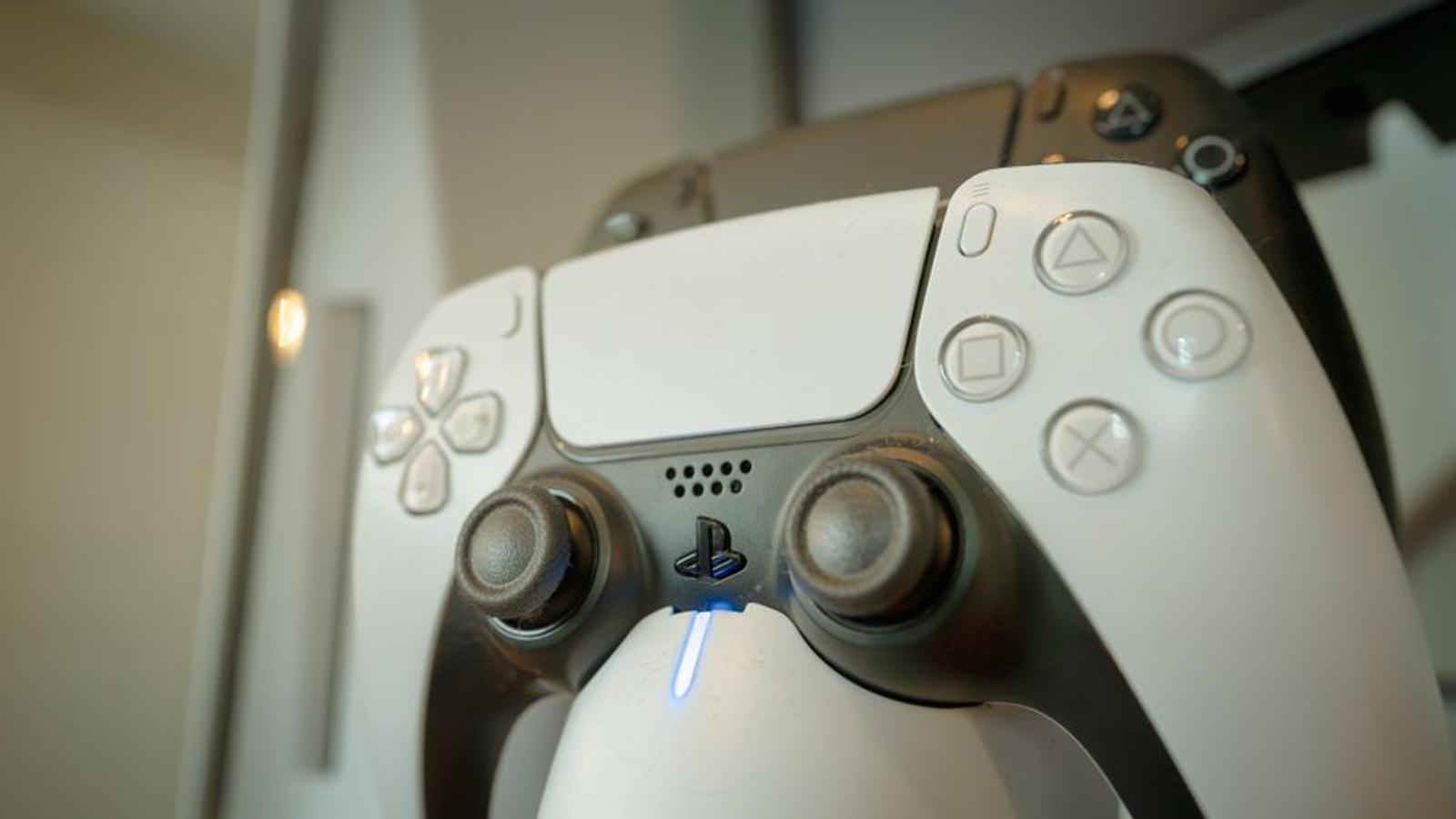
It is also worth distinguishing the console's light strip from another common indicator found on the DualSense wireless controller. A small, separate orange light situated directly beneath the controller's PS button signals that the built-in microphone is muted. Pressing that specific horizontal mute button toggles the microphone back on, clearing any confusion between peripheral controls and the console's internal operating state.
Core Functions of PS5 Rest Mode
Rest Mode provides practical everyday benefits by performing intensive maintenance tasks while the console remains largely idle. During this state, the system continues downloading game updates, software patches, and newly purchased titles directly over your network connection. As a result, players avoid long loading delays and mandatory patch installations when starting a gaming session.
In addition to background downloads, Rest Mode keeps the console's USB ports powered to replenish DualSense controllers and wireless headsets. This configuration ensures that peripherals are fully charged for the next play period without requiring the entire system to run at full wattage. For users with multiple accessories, this automated power delivery prevents battery exhaustion during critical matches.
Cloud storage integration also functions seamlessly while the PlayStation 5 is resting. The operating system securely uploads recent save data files to cloud storage servers, safeguarding player progress against potential storage corruption. Furthermore, remote connectivity remains accessible, allowing hardware accessories like the PlayStation Portal or mobile remote play applications to wake the console over local or external networks.
How to Enter and Exit Rest Mode Safely
Putting the PlayStation 5 into Rest Mode can be accomplished either through hardware buttons or the digital user interface. The most direct physical method involves briefly pressing the power button situated on the lower front panel of the console chassis. A single short press signals the system to suspend active processes and transition smoothly into standby.
Alternatively, users can initiate Rest Mode using the DualSense controller while seated in front of their display. Tapping the central PS button brings up the Control Center overlay across the bottom of the screen. Navigating to the Power icon on the far right and selecting Enter Rest Mode immediately starts the transition process.
When entering Rest Mode, the console's exterior light bar initially pulses white or amber before settling into a steady, solid orange glow. To wake the system, players can simply press the PS button on any paired controller or tap the console's front power button. The light strip will shift from orange to solid white, confirming that full operational power has been restored.
Proper Shutdown Procedures and Power Precautions
One critical operating rule emphasized by hardware experts is never to unplug the PlayStation 5 power cable while the orange light remains illuminated. Because the machine is still drawing electrical current and actively reading or writing to internal storage, abrupt disconnection can corrupt system files or permanently damage the solid-state drive.
If the console must be disconnected from an electrical outlet, moved to another room, or placed into storage, it must undergo a full shutdown. Users must open the Control Center power menu and explicitly choose Turn Off PS5 rather than entering standby. This command systematically closes background software and flushes all temporary memory buffers.
During a complete shutdown, the light bar will pulse white momentarily as background tasks cease and the hardware winds down. Owners must wait patiently until all lights on the console are completely extinguished before touching or unplugging the power cord. Rushing this step risks invalidating the internal file system and triggering extended recovery scans upon subsequent boot.
Customizing Power Saving and Rest Mode Settings
Under factory default settings, the PlayStation 5 is programmed to automatically enter Rest Mode after an extended period of user inactivity. However, Sony provides granular configuration options that allow players to adjust or entirely disable these idle timers to suit their personal habits. These controls prevent the console from entering standby unexpectedly during long cutscenes or background media streaming.
To manage these timers, open the system Settings menu from the top-right corner of the home dashboard and select System, followed by Power Saving. Within this menu, selecting Set Time Until PS5 Enters Rest Mode reveals two distinct configuration profiles. Users can assign separate inactivity durations for media playback, such as movie streaming apps, and active gameplay scenarios.
Setting these timers to shorter durations maximizes overall energy conservation, while setting them to Don't Put in Rest Mode keeps the hardware powered indefinitely until manually switched off. These distinct parameters accommodate varied living room setups, ensuring that movie viewers and active gamers experience no disruptions during operation.
Managing Background Features in Rest Mode
Beyond simple timing adjustments, the PlayStation 5 operating system allows users to define exactly which individual hardware sub-systems remain powered during standby. Navigating to Settings, then System, and opening Features Available in Rest Mode reveals an array of toggles governing internal functions. Customizing these options helps users optimize passive power consumption.
The Supply Power to USB Ports setting can be configured to Always, Three Hours, or Off entirely. Selecting the three-hour option ensures attached controllers receive sufficient time to fully recharge after a session, after which the console automatically cuts port power to eliminate unnecessary electrical draw.
Other critical toggles include Stay Connected to the Internet and Enable Turning On PS5 from Network. Enabling internet connectivity permits the console to download software patches and upload game saves automatically in the background. Meanwhile, network wake commands must remain active if you intend to stream gameplay via remote devices such as the PlayStation Portal or smartphones.
Recognizing Genuine PS5 Hardware Issues
Because the console represents a significant financial investment, differentiating between normal operational states and genuine mechanical failure is vital. As the hardware ages, thermal wear and electrical fatigue inevitably become factors that every owner should monitor. While an orange light is safe, other symptoms demand prompt technical attention.
Thermal throttling and overheating represent one of the most widespread mechanical failures encountered on modern gaming consoles. Overheating is typically caused by heavy internal dust accumulation choking the cooling fins, degraded thermal interface material, or obstructed external exhaust pathways. When internal temperatures exceed safe thresholds, the system acts to protect delicate semiconductor silicon from catastrophic damage.
Symptoms of serious overheating include sudden, unprompted system shutdowns in the middle of gameplay sessions, along with excessive heat radiating from the rear exhaust vents. The internal cooling fan may also spin at maximum velocity, producing unusually loud whining or rushing airflow. In severe circumstances, the operating system will display an explicit on-screen warning stating that the console is too hot and needs to cool down.
If cleaning the external vents and repositioning the console into an open, well-ventilated area fails to cure overheating, internal thermal maintenance is recommended. In persistent cases, the system's factory liquid metal or thermal compound must be evaluated or replaced by a trained repair professional to ensure heat transfers efficiently to the heatsink array.
Identifying GPU Artifacting and Display Faults
Another significant hardware vulnerability involves graphical processing unit (GPU) degradation, which manifests as distinct visual anomalies during rendering. Players experiencing GPU failure may notice screen flickering, strange multicolored artifacts across textures, jagged lines, or sudden video static. These visual glitches usually intensify as the console handles demanding three-dimensional titles.
Before assuming internal hardware failure, owners should eliminate external transmission issues through careful systematic troubleshooting. HDMI cables frequently fail under mechanical strain, and television input ports can deteriorate over time. Users should swap out the existing HDMI cable for an ultra-high-speed certified replacement, test alternate display ports, and verify the console on a secondary screen.
If visual artifacting and display tears persist across multiple cables and televisions, the internal graphics silicon has likely sustained irreversible physical or electrical damage. Because the PlayStation 5 relies on proprietary, surface-mounted components, repairing a damaged graphics core is rarely a simple DIY task. Owners facing verified GPU failure must either arrange factory servicing through Sony or contact an experienced hardware repair specialist.
Frequently Asked Questions About PS5 Power Lights and Troubleshooting
Why is there an orange light glowing on the PS5 controller?
An illuminated orange light directly below the PS button signals that the internal microphone is muted. Players can press this button to restore voice input instantly.
Is it safe to unplug the PlayStation 5 while the orange light is on?
No. The orange indicator confirms the console is in low-power Rest Mode. To disconnect power safely, select Turn Off PS5 and wait until all indicator lights turn completely off.
How can players prevent the PS5 from automatically entering Rest Mode?
Open Settings, choose System, select Power Saving, and open Set Time Until PS5 Enters Rest Mode. Users can configure custom timers or turn off automatic Rest Mode entirely.
What common hardware problems cause unexpected PS5 system shutdowns?
Frequent shutdowns or heat warnings indicate overheating from clogged vents. Clear out accumulated dust, improve ventilation, or seek professional servicing if issues persist.
Related articles