Understanding Netgear Router Lights: What Each Indicator Means
Deciphering the LED indicators on your Netgear router or Orbi mesh system is essential for troubleshooting. Learn what the different colors and blinking lights mean for your power, Wi-Fi, and internet connection.
By Tradifox Editorial· 10 min read
This article was generated with AI from the sources it names. Report an error

Reading the Status of Your Netgear Router
Netgear networking hardware utilizes illuminated icons across its front panel to display real-time diagnostics. Understanding these indicators enables owners to diagnose power interruptions, internet service outages, and local connection issues without consulting technical manuals. Because different models use varying color combinations, deciphering these signals remains essential for effective network management.
While legacy hardware relied primarily on green and amber indicators, modern Netgear routers typically use bright white and amber LEDs. Regardless of the specific lighting palette, the underlying signaling principles remain consistent across most devices. Solid lights represent steady operations, while blinking patterns point to data transfer, boot sequences, or operational disruptions.
The Power Indicator: Core Device Health
The power LED acts as the primary health monitor for the hardware. Under normal operating conditions, this light glows solid green or white, indicating that internal boot routines finished successfully and the router is ready. If this light stays dark, the hardware is not receiving electricity from its external power supply adapter.
A solid amber power light appears immediately after plugging the router into an electrical outlet. This behavior indicates that the hardware is initializing internal circuitry and loading core configuration profiles. The initialization sequence typically resolves within two minutes under normal operating conditions.
When the power LED blinks amber, the system is performing a high-priority operation such as applying firmware updates or executing a factory reset. Users must avoid unplugging the power cord during this sequence to prevent flash memory corruption. Allow the router sufficient time to complete these critical writes before taking action.
A blinking white power light signifies that internal operating firmware has become corrupted. In this scenario, the router cannot complete its standard boot routine and remains in a recovery state. Users generally need to reload the official Netgear firmware file using TFTP recovery utilities via an active Ethernet cable.
Alternating white and amber flashes on the power indicator signify that the router is configured in Access Point (AP) mode. When operating in this profile, standard routing, localized VPN tunnels, and remote administrative tools become unavailable. This visual alert informs administrators why specific management panels are missing.
Internet and WAN Indicators
The internet indicator reveals connectivity between the Netgear router and the primary broadband modem. A solid green or white light confirms an active link, indicating that the router negotiated a valid IP address and established access. This state confirms an active connection to your Internet Service Provider.
A solid amber internet light indicates that an Ethernet link to the modem is physically detected, but valid internet routing cannot be achieved. This condition frequently stems from modem provisioning delays, an offline upstream connection, or improper DHCP assignment. Power-cycling the broadband modem often resolves this synchronization problem.
When the internet LED blinks white, the router is actively transmitting or receiving packets across the wide area network. Rapid flickering corresponds directly with high downstream bandwidth consumption or active network activity. This behavior is standard while streaming high-definition media or running large file downloads.
If the internet LED remains completely unlit, the router detects no physical link on the designated WAN port. Users should inspect the RJ-45 cable connecting the router's internet jack to the modem. Damaged cables, loose clips, or unpowered modems prevent the router from establishing this physical interface.
Dedicated Wi-Fi Band Status
Modern high-performance Netgear routers feature distinct status lights for 2.4GHz and 5GHz wireless frequencies. Devices featuring Wi-Fi 6E or newer standards incorporate an additional 6GHz indicator. Each LED confirms that internal radio amplifiers are active and broadcasting local SSIDs.
A solid white light on any frequency LED means the corresponding radio channel is operating normally. When the radio is active, compatible wireless client devices can locate the broadcast name and associate securely. Users can toggle these radios independently via physical buttons or administrative interfaces.
Blinking white lights across the frequency indicators indicate real-time wireless packet transmission. Flickering accelerates as clients stream video or transfer data across that frequency. If an individual band LED turns off, that specific radio spectrum is disabled or has encountered an internal hardware fault.
In dual-band and tri-band hardware, observing which LEDs blink helps track client load distribution. If the 2.4GHz light flickers continuously while the 5GHz light stays solid, high-bandwidth devices may be crowded onto the slower legacy band. Adjusting network settings can redirect those devices to higher-frequency channels.
Ethernet Port Speeds and Diagnostics
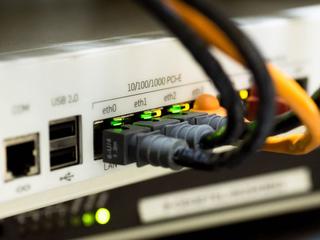
Netgear routers provide individual LED indicators for each numbered local Ethernet port. These indicators communicate connection state and negotiated link speeds for directly attached devices like gaming consoles and desktop computers. Monitoring them helps verify that wired connections achieve full potential throughput.
A solid white or green Ethernet LED denotes a high-speed Gigabit (1 Gbps) or multi-gigabit link. This color confirms that both the connected network adapter and the patch cable support maximum data rates. Cat5e, Cat6, and Cat6a cabling normally produce this indicator color.
An amber Ethernet light indicates a lower-speed connection negotiated at 100 Mbps or 10 Mbps. While legacy hardware may operate at these slower rates, modern hardware showing amber often indicates a damaged cable or bent pins. Replacing the patch cable often restores the faster Gigabit connection.
When an Ethernet LED flashes intermittently, data packets are transferring between the router and the target client. If a port light remains unlit while a device is plugged in, check the cable connection. You can also test the client device in another numbered port to isolate the problem.
USB Port Status and Storage Sharing
Many Netgear routers include USB 3.0 or USB 2.0 ports designed for networked storage and printer sharing via ReadySHARE. The corresponding USB icon indicates whether attached storage drives are recognized and ready for network access. This indicator prevents data loss by signaling active read and write operations.
A blinking USB LED indicates that a storage device is mounting or performing input-output operations. Users must never detach external flash drives or hard drives while this light flickers, as doing so can corrupt stored data. Wait until disk operations settle before disconnecting external storage.
A solid green or white USB indicator confirms that the storage drive is recognized and available on the local network. Users can map shared network folders once this light remains continuously illuminated. This solid state indicates that the drive's file system mounted properly.
When no storage accessory is attached, the USB light remains dark. The indicator also turns off after selecting the Safely Remove Hardware option inside the router's administrative dashboard. Once the light turns off, the external drive can be unplugged safely without risking filesystem errors.
Wi-Fi Protected Setup Operations
The Wi-Fi Protected Setup (WPS) button and indicator simplify pairing compatible clients without manually typing long passkeys. Pressing the WPS button causes the LED to blink while the router listens for pairing requests. This search window remains active for approximately two minutes.
A solid WPS light confirms that the pairing handshake finished successfully and the new client is authorized. The light usually stays on briefly before turning off to return to standard operation. If the pairing attempt fails, the LED turns off without showing a solid confirmation.
Security analysts and industry experts frequently advise disabling WPS functions within the administrative panel. The standard WPS pairing protocol contains inherent vulnerabilities that leave networks susceptible to brute-force security tools. Disabling this feature reduces unauthorized entry points without affecting network performance.
Netgear Orbi Mesh Front Indicators
Netgear Orbi mesh systems use a distinct light ring on the front panel instead of multiple standalone icons. This ring indicator communicates backhaul health and satellite synchronization using an intuitive color code. The front LED illuminates during boot and configuration routines before turning off entirely during normal operation.
A solid blue light glowing for several minutes indicates a strong connection between the main Orbi router and its satellite. This color confirms that the dedicated wireless backhaul has sufficient signal strength to deliver optimal throughput. Satellites showing blue are positioned within ideal operating range.
A solid amber light indicates an acceptable connection between the satellite unit and the base router. While the mesh network functions in this state, backhaul speeds may drop due to physical distance or structural interference. Moving the satellite closer to the main router typically restores an optimal blue status.
A solid magenta glow on the front ring indicates synchronization failure and an absent network connection. This warning shows that the satellite cannot reach the primary router, or the router cannot access internet service. In this state, devices connected to the satellite cannot route internet traffic.
Netgear Orbi Rear Status Diagnostics
In addition to the front ring, Netgear Orbi hardware incorporates rear diagnostic LEDs adjacent to the physical interfaces. These discrete indicators provide hardware-level alerts useful for hands-on troubleshooting. Understanding these rear signals helps isolate hardware errors from basic configuration issues.
A solid green rear LED confirms the Orbi unit is receiving power and operating correctly. This indicator confirms baseline system health when troubleshooting upstream internet disruptions. As long as this light remains green, the underlying system hardware is functioning properly.
A solid amber rear light appears while the Orbi unit completes standard system reboots. If the light transitions to a pulsing amber pattern, the unit is applying new firmware or undergoing a factory reset. Power to the unit must remain steady throughout this automated update cycle.
A pulsing red rear indicator signals a critical connection failure or hardware fault. This warning can indicate damaged flash memory, bootloader failures, or an inability to communicate with internal network radios. When a reboot does not clear this error, the unit usually requires warranty replacement.
Systematic LED Troubleshooting Steps
Deciphering router lights provides a reliable framework for resolving residential networking issues systematically. When an outage occurs, examine the power indicator first to confirm baseline electrical and system stability. A solid light confirms the device itself is functional, allowing you to move on to external connection factors.
Next, examine the internet LED to determine if the outage originated on your local network or with your broadband provider. An amber or unlit internet light suggests issues with the modem connection or upstream service interruptions. If the internet light glows solid white, the problem likely lies with local Wi-Fi pairing or client configurations.
Observing light behavior simplifies routine home network maintenance. Knowing how Netgear indicators behave under normal conditions helps you pinpoint problems quickly without unnecessary factory resets. Monitoring these indicators gives you a clear, real-time view into your network's overall performance.
Frequently Asked Questions About Netgear Router Status Lights
What does a blinking amber power light mean on a Netgear router?
A blinking amber power light indicates that the router is actively applying a firmware update or undergoing a factory reset. During this process, you should never disconnect the power cable or switch off the unit, as interrupting the write sequence can corrupt the internal software.
How do you recover a Netgear router when the light blinks white?
A blinking white power light indicates corrupted firmware, which prevents the router from booting. To recover the unit, download the correct firmware file from Netgear support onto a computer, connect directly via Ethernet, and upload the file using a TFTP utility to restore the operating system.
What do the different LED colors on an Orbi satellite indicate?
Orbi satellite front LEDs indicate backhaul quality: solid blue confirms a strong connection to the router, solid amber indicates an acceptable link, and solid magenta signals no connection or lack of internet access.
Why does a Netgear power LED blink both white and amber?
A power LED alternating between blinking white and amber shows the router operates in access point mode. In this mode, standard routing features, VPN capabilities, and remote network management tools are disabled.
Related articles