How to Disable Audio Autoplay on Android Auto
Tired of your car blasting music the second you start the engine? Discover step-by-step methods to disable Android Auto's autoplay feature and regain control of your morning commute.
· 10 min read
This article was generated with AI from the sources it names. Report an error
The Mechanism Behind Android Auto Audio Autoplay
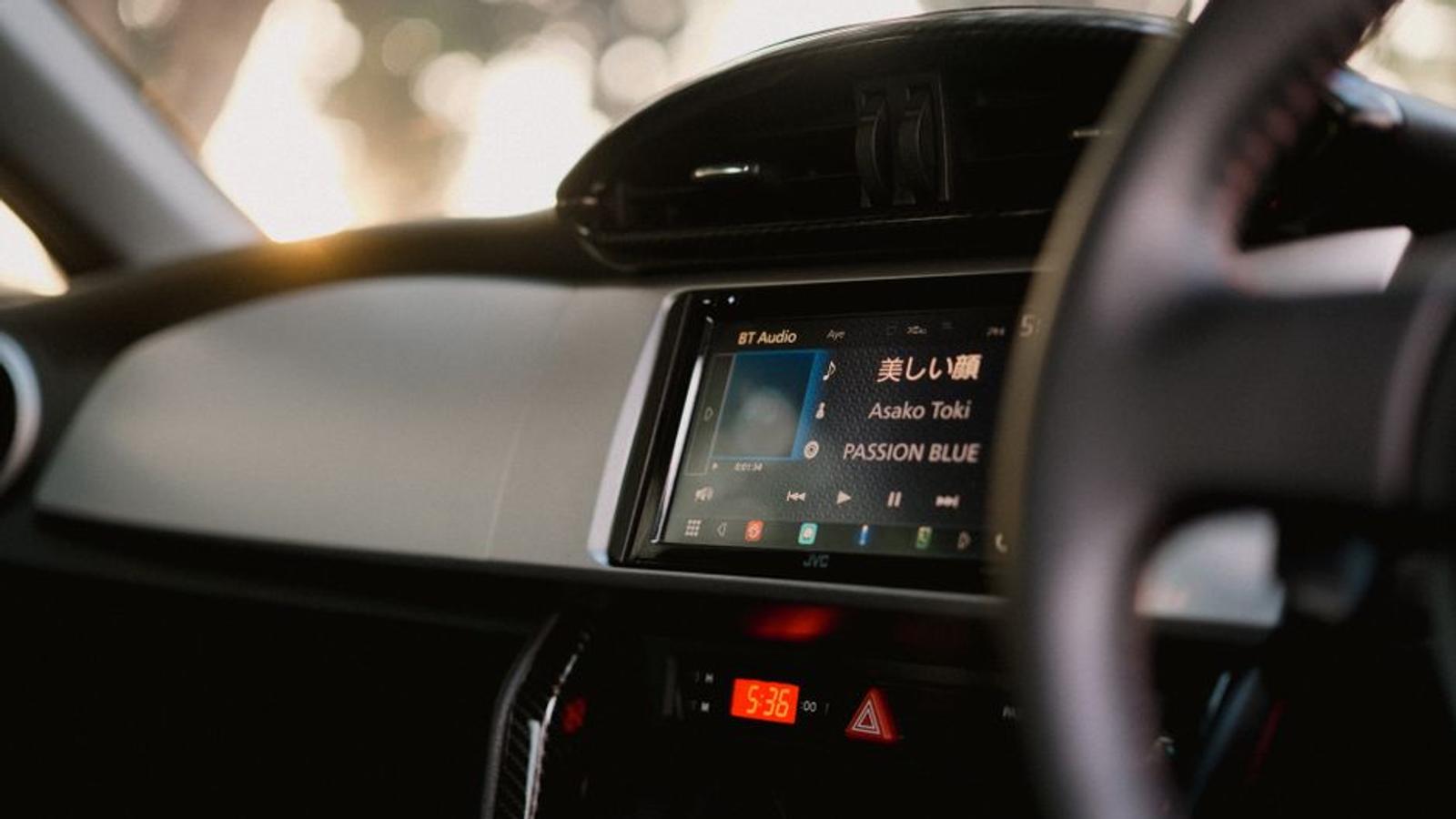
Modern automotive infotainment platforms are designed around instant connectivity, interfacing smartphones with head units using direct USB connections, wireless adapters, or native wireless links. When an Android device establishes a link, Android Auto typically restores the driver's prior media session without waiting for a manual prompt. This automatic resumption applies indiscriminately to music playlists, recent podcast episodes, and audiobooks, playing through vehicle speakers at whatever output level was active when the engine was last switched off.
While automatic audio resumption is intended to provide a seamless hands-free transition, it routinely produces unwanted volume spikes and startling interruptions during morning commutes. The underlying mechanism relies on media session states stored within the mobile operating system, which listen for connection handshakes from authorized vehicular receivers. When the connection event fires, Android Auto broadcasts an automated play command across the active audio pipe, causing third-party streaming clients to resume playback instantly.
Controlling this automated media stream once required complex developer workarounds, third-party task automators, and background utility scripts. Recent iterations of Android and the Android Auto interface have integrated direct toggle controls to govern startup media behavior. However, hardware differences between vehicle manufacturers and persistent wireless protocols often complicate these software switches, requiring drivers to apply targeted configuration steps across multiple system layers.
Step-by-Step Instructions: Disabling Media Autoplay in Android Auto
The primary method for suppressing involuntary audio startup is located within the dedicated Android Auto settings interface on your smartphone. Because Android Auto functions primarily as an integrated operating system service rather than a standalone app on newer Android releases, accessing these controls requires navigating through device connection submenus.
Begin by launching the main Settings application on your Android phone while disconnected from your vehicle. Scroll through the core settings options and select the Connected devices menu. From this screen, tap on Connection preferences, then locate and choose Android Auto to open its full configuration preferences.
Alternatively, users can open their Settings app and enter Android Auto directly into the top search bar to reach the management dashboard immediately. If your smartphone is already connected to your vehicle dashboard, you can also access a corresponding settings icon directly on the car display panel. Both interfaces adjust the identical underlying profile settings stored on the host smartphone.
Once inside the Android Auto settings menu, scroll downward through the options until reaching the section labeled General or Startup. Within this area, locate the toggle switch titled Start music automatically. By default, this switch is set to the active position, instructing the software to restart your primary media source the moment an interface link forms.
Tap the toggle switch beside Start music automatically to move it to the disabled position. Once turned off, the operating system stops dispatching an automated media resume event whenever the vehicle establishes communication. Exit the settings screen to save your adjustments; restarting your smartphone ensures the altered preference profile commits cleanly to the operating system memory.
The Role of Bluetooth Handshakes and Connection Protocols
Deactivating the startup toggle inside Android Auto resolves unwanted audio playback for a significant percentage of drivers, but it is not an exhaustive fix for every vehicle. In many cars, media continues to play immediately upon entering the cabin, even after the startup toggle has been verified as disabled. When this happens, the root trigger is almost universally found in Bluetooth connection handshaking rather than Android Auto software rules.
Android Auto relies heavily on two parallel connection layers: high-bandwidth data transfers handled through Wi-Fi or physical USB cables, and core telecommunication handshakes routed through traditional Bluetooth profiles. Android Auto uses standard Bluetooth profiles specifically to route voice calls, contacts, and hands-free microphone input. However, your car's native dashboard head unit maintains its own separate Bluetooth media profile, operating independently of Google's interface.
When a vehicle's electrical system starts up, the onboard head unit initiates an aggressive Bluetooth scan to reconnect with paired devices. Many automobile manufacturers program their onboard stereos to transmit an immediate, hardware-level AVRCP play signal over Bluetooth as soon as a phone responds to the ping. If your vehicle issues this basic play signal, your smartphone's media framework responds by resuming audio, bypassing the startup limitations configured within Android Auto.
To determine if your persistent playback issue is caused by Bluetooth or Android Auto, examine what occurs before the Android Auto projection loads onto your screen. If music starts playing the instant your vehicle powers on—well before the graphical Android Auto dashboard appears—the native vehicle stereo is the active culprit. In this scenario, the car's native Bluetooth media player is triggering playback before the Android Auto software has even initialized.
Drivers can manage this Bluetooth-level conflict by modifying individual Bluetooth connection properties on their phones. Navigate to Settings, tap Connected devices, and locate your car stereo in the list of previously paired equipment. Tap the gear icon adjacent to the car's name to open its profile permissions. If your vehicle supports wired Android Auto, turn off the toggle for Media audio while leaving Phone calls active, preventing the dashboard from issuing AVRCP media commands.
Managing Spotify Playback Quirks and External Hardware Triggers
Among all popular media streaming platforms, Spotify generates the highest volume of user complaints regarding unintended playback during vehicular travel. Spotify community forums contain extensive discussion threads dating back to 2022 and continuing through modern releases, detailing situations where audio resumes without permission in vehicle cabins. Drivers frequently report that disabling Android Auto startup options fails to stop Spotify from playing.
According to official documentation and technical guidance from Spotify support teams, this persistent behavior is tied directly to how external accessories interface with Spotify's mobile API. Many car stereos, Bluetooth transmitters, and wireless dongles transmit an automatic play command across their media connection. Spotify does not block these external hardware requests by default, treating incoming connection signals as deliberate user commands to continue the prior listening session.
Drivers can mitigate these Spotify playback quirks by adjusting settings within the Spotify mobile client itself. Open the Spotify app on your phone, tap your profile avatar or the gear icon in the upper corner, and navigate to the Settings and Privacy menu. Scroll down to the Playback category and examine the Autoplay toggles. Ensure that the option titled Autoplay similar content is toggled off across all connected device profiles.
Additionally, drivers should check the internal device connection options inside Spotify. Under the Devices menu, locate the setting for Spotify Connect in the background and ensure permissions are configured to minimize ambient hardware wakeups. While these in-app adjustments help rein in background playback triggers, they do not completely override external AVRCP play commands issued directly from vehicle head units that lack strict command filtering.
To determine whether unexpected media playback stems from the Spotify software itself or unique car hardware, drivers should isolate the behavior using other Bluetooth endpoints. Pair your smartphone with a pair of standard wireless headphones or a portable home speaker and observe the connection behavior. If Spotify stays paused when connecting to household headphones, the issue is rooted in how your car's infotainment system handles its Bluetooth handshake.
Advanced Troubleshooting and Alternative Solutions
When standard configuration adjustments inside Android Auto, Bluetooth settings, and streaming applications fail to prevent automatic playback, advanced troubleshooting steps are required to isolate the software conflict. System anomalies frequently stem from outdated platform firmware, corrupted application caches, or lingering pairing records held in the vehicle's onboard dashboard computer.
Start your extended troubleshooting by clearing the cached data files inside Android Auto and your primary media players. Navigate to your phone's Settings app, select Apps, and tap See all apps. Locate Android Auto, open the Storage & cache screen, and tap Clear cache. Repeat this identical cache-clearing procedure for Spotify, YouTube Music, Audible, or whichever media service repeatedly starts playing in your car.
Next, evaluate the firmware status across all involved devices. Check your smartphone for pending Android system updates and install every available patch. Concurrently, open the Google Play Store to verify that Android Auto and all installed streaming players are running their latest production builds. Finally, check your vehicle manufacturer's support portal to see if your car's infotainment unit requires a firmware update, as automakers periodically distribute software updates to resolve Bluetooth compatibility bugs.
If unprompted media playback persists, perform a clean pairing reset between your phone and your vehicle. Open the vehicle's infotainment screen, navigate to its device management list, and permanently delete your smartphone from its memory. On your smartphone, enter the Bluetooth menu, locate your vehicle, and select Forget device. Restart both your mobile phone and your vehicle's engine, then complete the initial pairing process from scratch.
Another effective practical workaround for vehicles with persistent wireless handshakes is switching exclusively to wired connections. Completely unpair your phone from your vehicle's Bluetooth system, disable wireless projection options, and connect your phone to the car using only a high-grade USB data cable. Operating strictly through a wired connection frequently eliminates the secondary Bluetooth AVRCP signals responsible for triggering unwanted playback.
Drastic Workarounds for Incompatible Head Units
Due to the widespread lack of standardized hardware and software designs across automotive manufacturers, some proprietary head units will trigger audio playback regardless of which operating system toggles are disabled. If you have adjusted Android Auto, modified your Bluetooth settings, altered app playback parameters, and re-paired your hardware without success, more aggressive measures are available to enforce quiet startups.
One technical approach involves leveraging automation applications like Tasker or MacroDroid to enforce system-level media rules. Drivers can create a lightweight routine that monitors system states: when the smartphone establishes a Bluetooth connection to the vehicle, the automation app immediately issues a global Media Pause command and sets media stream volume to zero. This automated counter-command effectively cancels the car's initial play signal within milliseconds.
Another reliable option is to adjust battery and background execution permissions for your media applications. In your phone's Settings menu, open Apps, select your media player, and tap Battery. Change the execution profile from Unrestricted to Restricted. This configuration prevents the streaming app from running in the background when closed, stopping it from responding to passive connection pings when you start your car.
For drivers who never stream music or podcasts through Android Auto and only use the platform for navigation and messaging, removing the media app from Android Auto provides an absolute solution. To do this, open Android Auto settings on your phone, tap Customize launcher, and uncheck the media application from the app drawer list. Once disabled, Android Auto will not recognize the app as an active media provider, permanently ending autoplay issues on your drive.
Frequently Asked Questions About Android Auto Audio Autoplay
How do you turn off automatic audio playback within Android Auto settings?
Open your phone Settings, select Connected devices, choose Android Auto, and toggle off Start music automatically under the Startup section. This halts automatic media playback upon connection.
Why does music keep playing automatically after disabling the startup toggle?
External car receivers frequently send an automatic play command over Bluetooth during the initial connection handshake. Because Bluetooth is required for calls, this hardware trigger overrides the setting.
Does removing vehicle Bluetooth pairing prevent unwanted audio playback?
Unpair your phone from your vehicle's native Bluetooth system and connect solely via USB cable. Without Bluetooth media profiles active, external playback commands are significantly reduced.
What is the final workaround if streaming apps continue to play automatically?
Drivers can remove the audio app from Android Auto's launcher customization menu. While this halts automatic playback completely, it also prevents controlling the app from the infotainment dashboard.
Related articles