How to Check Your Ethernet Cable Speed and Troubleshoot Network Bottlenecks
Discover how to check your actual Ethernet link speed, identify hardware bottlenecks, and test local network throughput to ensure your wired connections are delivering maximum performance.
By Tradifox Editorial· 10 min read
This article was generated with AI from the sources it names. Report an error
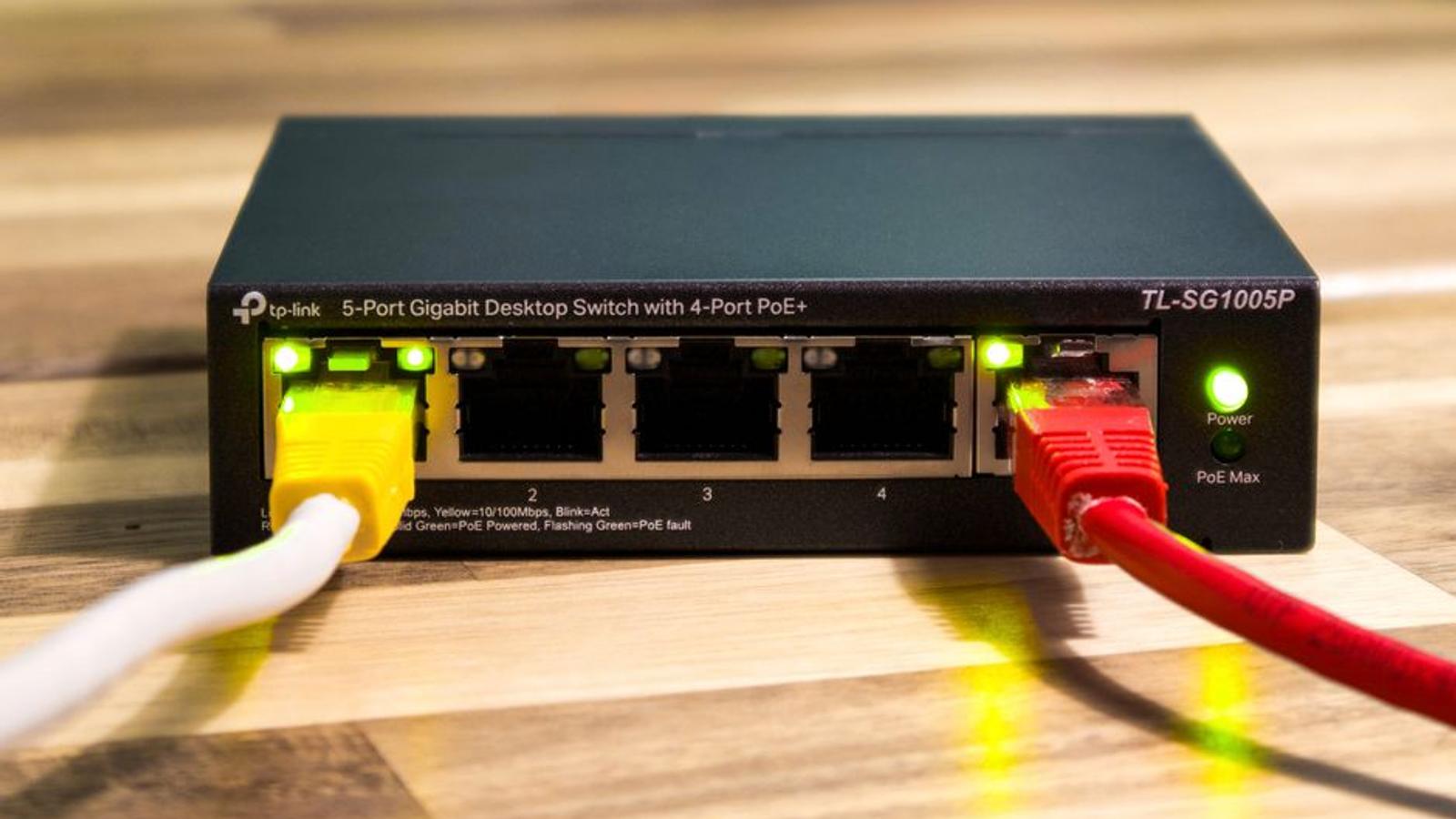
Wired Ethernet connections remain the gold standard for low-latency gaming, reliable teleconferencing, and high-volume local data transfers. While plugging directly into a router eliminates the interference typical of wireless networks, it does not guarantee gigabit performance. Physical wear, hardware bottlenecks, and incorrect configurations can secretly choke connections to legacy speeds.
Diagnosing these performance drops requires understanding the distinction between local link speed and outward internet bandwidth. Many users assume a low online speed test score indicates a broken cable, but internet tests measure broader external network conditions. Isolate local hardware variables first to identify the true source of network throttling.
Understanding Local Link Speed Versus Internet Throughput
A critical early step in network diagnostics is separating link speed from external internet service provider throughput. Link speed describes the negotiated data signaling rate between two physical ports on a local area network, such as a computer's network interface card and a switch port. It defines the theoretical maximum throughput across that specific physical segment.
Conversely, an online speed test measures the bandwidth delivered from a remote server across miles of internet infrastructure to your home. If a subscriber pays for a 300 Mbps broadband tier, an online test will never surpass 300 Mbps, even when connected across a 10 Gbps local cable link. The local link merely establishes the ceiling through which outside traffic passes.
When a cable or port experiences physical faults, the hardware automatically negotiates down to a lower, more stable signaling standard to prevent dropped frames. If a system negotiates a 100 Mbps link rate, even a multi-gigabit broadband connection is restricted to double-digit speeds. Verifying your adapter's negotiated link rate serves as the first step in physical diagnostics.
Checking Negotiated Link Speed in Windows
Windows provides multiple native utilities to inspect your current physical connection rate without third-party software. Windows 11 simplifies this process through the modern settings dashboard. Opening Settings, navigating to Network & internet, and selecting Ethernet displays the active connection profile and underlying hardware configuration.
Within this interface, locate the field labeled Link speed (Receive/Transmit). On modern hardware paired with a functional switch, this field typically reports 1000/1000 Mbps, indicating a full-duplex gigabit link. If it reads 100/100 Mbps or 10/10 Mbps, the operating system is actively throttling throughput to accommodate a hardware or physical layer limitation.
Users operating Windows 10, or those who prefer legacy interfaces, can utilize the Network Connections control panel. Pressing the Windows key and R opens the Run dialog, where typing ncpa.cpl opens the adapter menu. Right-clicking the active Ethernet adapter and choosing Status reveals the operational parameters of the link.
The Status window prominently features a Speed metric that updates dynamically based on the current hardware negotiation. This interface shows 1.0 Gbps under healthy operational parameters. If this window indicates 100 Mbps, the operating system has failed to establish a full gigabit session with the upstream networking device.
Identifying Adapter Link Speed in macOS
Apple platforms offer detailed hardware telemetry through macOS System Settings, allowing users to verify port negotiation without touching the command line. Open System Settings from the Apple menu, select Network from the sidebar, and choose either the built-in Ethernet controller or your connected USB adapter.
Click the Details button adjacent to the active connection, then select the Hardware tab from the left navigation column. This screen reveals the physical parameters governing the interface, including MAC address, MTU size, and negotiated speed. The Speed field displays the current operational rate, such as 1000baseT or 100baseTX.
By default, macOS sets interface configuration to Automatic, allowing the controller to negotiate the highest mutually supported standard with the connected switch. Users should avoid forcing manual duplex or speed settings in this menu, as manual overrides can cause link renegotiation failures and intermittent drops. If an Automatic setting drops to 100baseTX, the physical infrastructure requires physical inspection.
The Physics of Twisted Pairs: 100 Mbps Fallbacks
Understanding why connections drop to 100 Mbps requires examining the internal structure of twisted-pair copper Ethernet cabling. Modern Category cables contain eight insulated copper conductors arranged into four color-coded twisted pairs. Each pair serves a specific role in signal propagation and cross-talk cancellation.
Legacy Fast Ethernet (100baseTX) standards require only two active wire pairs—specifically pins 1, 2, 3, and 6—to transmit and receive data. The remaining two pairs sit idle in legacy applications. When Fast Ethernet dominated consumer networking, cables were frequently wired with only four conductors to reduce production costs.
In contrast, modern Gigabit Ethernet (1000baseT) and faster standards require all four wire pairs to function simultaneously in bidirectional communication. The physical controller uses sophisticated echo cancellation and digital signal processing across all eight pins to achieve 1,000 Mbps throughput over standard copper.
If even a single conductor within those eight wires fractures, or if a modular RJ45 plug has a bent gold-plated pin, gigabit signaling fails. Instead of completely severing the network connection, modern networking chips automatically step down to Fast Ethernet mode. This fallback keeps devices online, but traps data throughput at an absolute ceiling of 100 Mbps.
Visual Inspection and Category Ratings
Physical cables often look identical from the outside, because standard RJ45 modular connectors have remained visually unchanged for decades. An obsolete Cat3 cable looks remarkably similar to a high-performance Cat6a patch lead to the untrained eye. Differentiating these standards requires inspecting the printed text running along the exterior PVC or LSZH jacket.
Category 5 (Cat5) represents an older standard primarily rated for up to 100 Mbps transfers, though short runs occasionally sustain higher rates under ideal conditions. Category 5e (Cat5e) introduced stricter cross-talk specifications, formally certifying all four pairs for reliable 1,000 Mbps gigabit transmission at distances up to 100 meters.
Category 6 (Cat6) increases internal wire gauge, often incorporates a physical plastic spline to separate the pairs, and certifies bandwidth up to 250 MHz. Cat6 supports 1 Gbps up to 100 meters and can deliver 10 Gbps speeds across shorter distances up to 55 meters. Category 6A (Cat6a) thickens the shielding and doubles the frequency to 500 MHz, maintaining 10 Gbps up to 100 meters.
Category ratings indicate guaranteed manufacturing tolerances rather than absolute digital walls. An uncertified legacy cable might briefly achieve gigabit negotiation over a two-foot desk span, but fail completely when run through a wall cavity. Visual verification ensures the cable was engineered to support the bandwidth your network architecture requires.
Hardware Port Limitations and Interface Bottlenecks
Cables are frequently blamed for performance slowdowns when the true bottleneck lies within connected networking hardware. A premium Category 6 patch cord cannot deliver gigabit speeds if plugged into an interface restricted to Fast Ethernet. Every device in the data path must actively support the desired line rate.
Budget smart-home hubs, television streaming boxes, and older residential routers often feature Fast Ethernet RJ45 ports to reduce manufacturing costs. Because these consumer devices rarely demand more than 100 Mbps, manufacturers omit gigabit controllers. Inspect the physical port specifications on your switches and routers to confirm they feature 10/100/1000 capability.
USB Ethernet adapters are another frequent point of hardware failure. Modern ultrabooks lack native RJ45 ports, forcing users to rely on external dongles or multi-port docks. An adapter connected via a legacy USB 2.0 interface faces a theoretical bus limit of 480 Mbps, which real-world overhead typically limits to roughly 300 Mbps.
Furthermore, many inexpensive USB-to-Ethernet adapters utilize low-cost Fast Ethernet controllers internally. Even when plugged into a 40 Gbps Thunderbolt port, a Fast Ethernet dongle negotiates a 100 Mbps link with the router. Always verify the controller chipset in your operating system's device manager to ensure the adapter supports full gigabit throughput.
Testing Local Throughput with iPerf3
When operating systems report a 1 Gbps link, that figure merely indicates the line negotiation rate, not verified real-world throughput. To assess true transmission performance without interference from outside internet servers, technicians rely on iPerf3. This open-source command-line tool measures raw TCP and UDP throughput across a local network.
To conduct an iPerf3 test, connect two computers to your local router or switch using wired Ethernet cables. Temporarily disable Wi-Fi on both systems to guarantee all traffic routes through the physical network adapters. Designate one machine as the listening server and the second machine as the active client.
On the server machine, open a command prompt or terminal and execute the command iperf3 -s. The terminal will confirm that the application is listening for incoming network traffic on port 5201. Identify this machine's local IP address using ipconfig on Windows or ifconfig on macOS.
On the client machine, execute the test by running iperf3 -c followed by the server's local IP address (for example: iperf3 -c 192.168.1.50). The client generates and transmits synthetic TCP traffic directly across the local link for ten seconds. The terminal then prints an interval-by-interval throughput breakdown alongside an overall transfer average.
A healthy gigabit link typically yields an iPerf3 throughput reading between 930 and 950 Mbps, reflecting expected TCP/IP protocol overhead. If your link is negotiated at 1 Gbps but iPerf3 reports speeds below 600 Mbps or displays significant packet retries, the cable may suffer from structural damage or electromagnetic interference.
Physical Isolation and Cable Testing Tools
Isolating physical network faults requires a systematic process of elimination. If a connection drops to 100 Mbps, begin by unplugging and firmly reseating both ends of the RJ45 cable. Dust, lint, or oxidized contacts within the jack can disrupt contact on one pin, forcing the controller to drop down to Fast Ethernet mode.
If reseating fails, replace the suspicious cable with a known-good, factory-terminated patch lead across the exact same router and computer ports. Observe the operating system's link speed status immediately following the swap. If the link rate instantly updates from 100 Mbps to 1 Gbps, the original cable has suffered internal damage or degraded pin terminations.
For structured cabling installed inside walls, handheld continuity testers offer valuable physical insight. Inexpensive continuity units feature an active transmitter and a passive remote block that plug into opposite ends of the line. The tool cycles an electrical pulse through pins 1 through 8 sequentially, illuminating corresponding LEDs to identify broken traces, reversed pairs, or short circuits.
While handheld continuity testers identify basic wire breaks, they cannot certify high-frequency signal integrity. Comprehensive cable qualification requires specialized digital analyzers capable of assessing signal-to-noise ratio, near-end cross-talk, and return loss. For standard home and office troubleshooting, swapping patch cables and monitoring operating system link negotiation provides a dependable diagnostic approach.
Frequently Asked Questions: Ethernet Speeds and Network Troubleshooting
What are the main performance differences between Cat5e and Cat6 Ethernet cables?
Both Cat5e and Cat6 support gigabit transfer rates up to 1,000 Mbps. Cat6 features tighter wire twists and thicker insulation that reduce signal crosstalk, allowing it to sustain higher speeds over longer runs, whereas Cat5e is primarily rated for standard gigabit links.
Why does a gigabit Ethernet connection suddenly drop and negotiate at 100 Mbps?
Gigabit speeds require all four internal wire pairs. Because legacy Fast Ethernet operates on only two pairs, any broken internal wire, damaged connector, or bent port pin causes network hardware to drop the link negotiation back to 100 Mbps to maintain basic connectivity.
Can standard handheld multimeters certify the maximum speed rating of an Ethernet cable?
Multimeters and continuity testers check basic physical wire continuity and pinout mappings. However, they cannot assess high-frequency attenuation or signal interference. True bandwidth capacity requires dedicated qualification or certification equipment.
Why is an online speed test inadequate for evaluating raw Ethernet cable throughput?
Web speed tests measure complete internet routes influenced by outside service provider limits and browser overhead. Dedicated local tools like iPerf3 benchmark raw network hardware and the physical cable directly between two local machines without ISP interference.
Related articles