How Long You Can Expect the Original Steam Deck to Last
Explore the hardware limits, battery life, and repairability of the original Steam Deck to see how many years of reliable gaming it has left before needing an upgrade.
By Tradifox Editorial· 8 min read
This article was generated with AI from the sources it names. Report an error
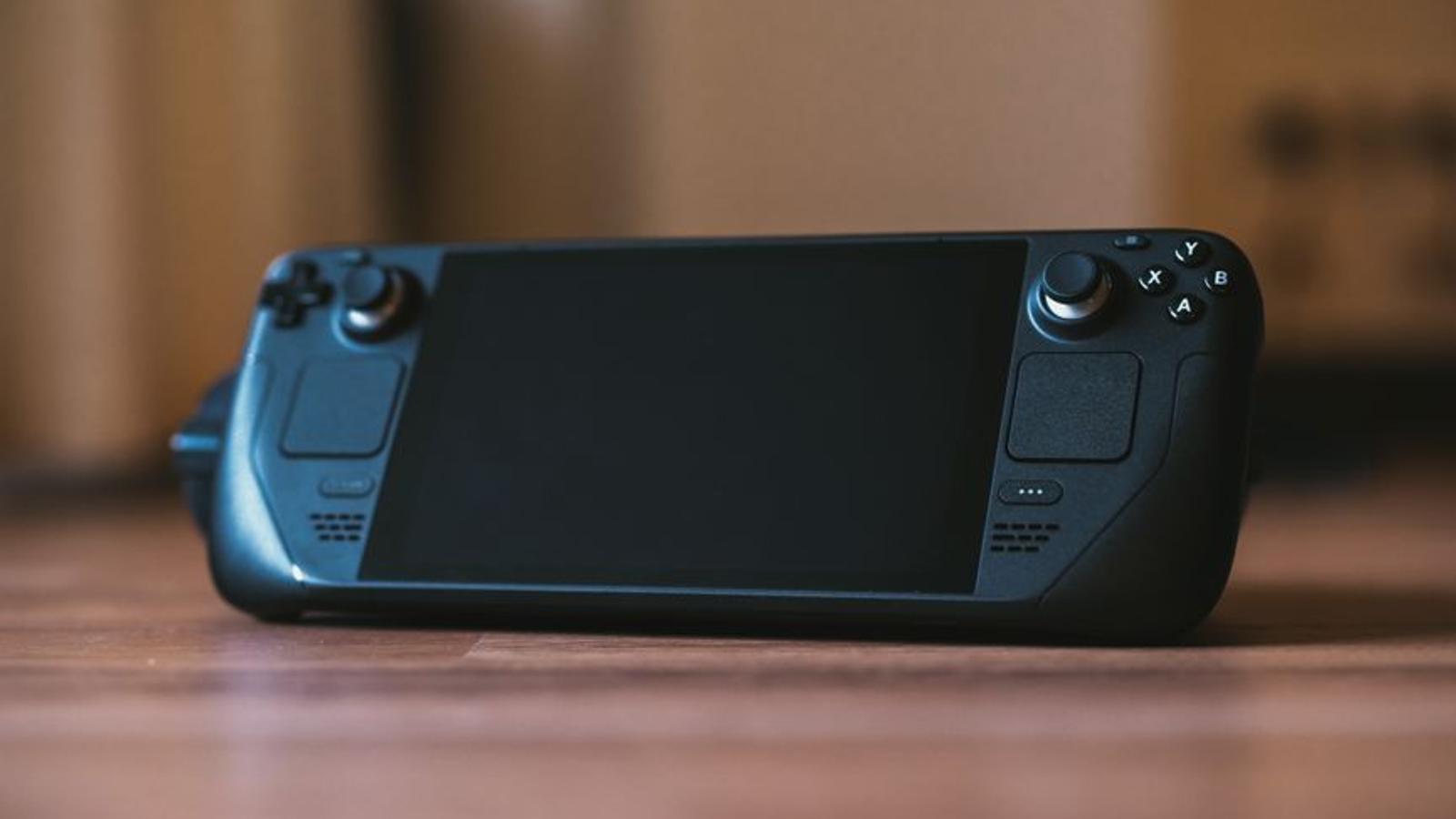
Audit Battery Health and Thermal Throttling Thresholds
Assessing the long-term viability of an original Steam Deck begins with evaluating the condition of its internal power cell. Chemical battery degradation represents one of the most inevitable hardware bottlenecks for aging handhelds, gradually shortening untethered play sessions. Because lithium-ion packs deteriorate with repeated charge cycles, monitoring actual capacity helps establish whether your device requires software recalibration, hardware intervention, or power management adjustments.
Check Battery Health in Desktop Mode
To view your handheld's true battery capacity, switch from Gaming Mode to Desktop Mode via the Power menu. Click the battery icon in the system tray on the taskbar to inspect detailed power metrics. Look specifically at the reported Battery Health percentage, which compares your unit's current maximum charge holding capacity against its original factory specification.
If the health metric appears unusually low, the battery fuel gauge software may simply be out of sync. You can recalibrate the sensor by draining the device until it shuts down, charging it to full capacity without interruption, and leaving it plugged in for extra hours. However, if health remains below 80 percent after calibration, normal chemical wear has set in, reducing your handheld playtime.
Monitor Performance Throttling and Temperatures
Degraded batteries and aging cooling assemblies frequently trigger thermal throttling, which visibly hampers frame pacing during demanding gaming sessions. Return to Gaming Mode, press the Quick Access button (the three-dot button), and navigate to the Performance tab. Set the Performance Overlay Level to 2 or 3 to observe real-time metrics while running a resource-heavy title.
Watch your processor and GPU clock speeds alongside core temperatures during extended gameplay. Normal operations maintain stable clock frequencies, but failing hardware will exhibit sudden clock dips to 400MHz or 200MHz as temperatures cross thermal thresholds. These sharp drops indicate that thermal constraints or voltage delivery issues are throttling performance, signaling internal maintenance may soon be necessary.
Inspect Modular Hardware Components and Wear Points
Determining how long your original Steam Deck will remain functional involves evaluating its modular internal hardware. While core silicon cannot be altered, Valve designed several mechanical and storage assemblies to be user-serviceable. Pinpointing wear on these critical parts helps owners plan necessary upkeep before catastrophic component failures disrupt portable play.
Check Analog Thumbsticks for Drift and Friction
Mechanical thumbsticks endure continuous friction and represent one of the most common physical failure points over years of handheld gaming. Calibrate and test your stick centering through the SteamOS controller settings menu to detect early potentiometer degradation or persistent input drift. When wear occurs, replacing these units is relatively straightforward: official replacement thumbstick modules sell through iFixit for roughly $40 each and require zero soldering to swap.
Assess Cooling Fan Health and Airflow Pathways
Thermal performance dictates hardware longevity, especially on older devices running resource-heavy workloads. Listen closely to the internal cooling fan under high load to identify grinding, whining, or rattling noises that signal worn bearings. Accumulated dust in the intake and exhaust vents forces the fan to spin at maximum RPM, accelerating mechanical strain. The cooling assembly is easily accessible, requiring only a few chassis screws to remove, clean, or completely replace.
Audit Internal Storage and Secondary Ports
Storage expansion and physical port degradation represent another crucial factor in long-term hardware health. The internal M.2 2230 SSD is remarkably simple to service, requiring the removal of just a single retaining screw once the protective shielding is lifted. Upgrading an aging or failing SSD extends operational capacity with minimal labor. However, owners must exercise caution with soldered connections: unlike the modular SSD, thumbsticks, and fan, structural interfaces like the USB-C port and microSD card slot cannot be casually replaced at home, ranking alongside the glued-in battery as the handheld's most difficult physical maintenance liabilities.
| Replacement Part | Estimated Cost | Required Tools | iFixit Difficulty |
|---|---|---|---|
| Internal Battery | $90 – $100 kit | Prying picks, adhesive solvent | Difficult (Heavy Glue) |
| Thumbstick Module | $40 per stick | Phillips screwdriver, tweezers | Easy (Modular Board) |
| M.2 2230 NVMe SSD | $45 – $120 total | Precision Phillips bit driver | Moderate (Single Screw) |
| Cooling Fan Unit | $25 – $30 part | Screwdriver, plastic spudger | Moderate (Multi-Screw) |
| USB-C / MicroSD | $50+ / Board swap | Soldering kit or full motherboard | Very Difficult (Soldered) |
Optimize Graphics Settings and SteamOS Power Limits
Preserving the longevity of the original Steam Deck requires actively managing thermal output and processing overhead. The handheld's custom AMD APU and shared 16GB of unified memory face severe bottlenecks when rendering modern releases natively. By deliberately adjusting visual Fidelity, frame rate ceilings, and power consumption profiles, users can substantially minimize thermal strain on internal parts.
Cap Display Refresh Rates and Target Framerates
Running games uncapped forces the cooling fan and silicon to operate continuously at peak thresholds. Press the Quick Access button (the three-dot key) on the right side of the device and open the Performance overlay. Toggle the unified frame limiter to cap games at 40Hz/40fps or 30Hz/30fps.
A 40Hz refresh rate reduces input latency compared to 30fps while reducing processor workload by roughly one-third relative to 60fps. Capping demanding games at 30fps preserves battery health and limits heat buildup that degrades components. Lower operating temperatures also extend the operational lifespan of the internal cooling fan.
Reduce Render Resolution and Enable FSR
Demanding modern engines place heavy strain on the Deck's shared memory architecture. In the native display settings of graphically intensive titles, lower the internal resolution to 720p or 960x600. Then open the SteamOS Performance menu and activate the built-in AMD FidelityFX Super Resolution (FSR) upscaler to reconstruct a native 800p image.
FSR offloads rendering stress from the GPU, preventing thermal throttling during complex scenes. Set shadow quality, screen-space reflections, and volumetric lighting to low or medium across all modern titles. These graphical concessions preserve steady frame pacing without overtaxing the aging hardware.
Configure Custom TDP Limits
SteamOS allows direct adjustment of the APU's Thermal Design Power (TDP) via the Quick Access menu. Enable the TDP limit slider and gradually lower the target wattage from the default 15 watts down to 8–11 watts for older or mid-tier releases. For lightweight 2D indie titles, retro emulation, or remote streaming setups, a modest 5 to 7 watts delivers fluid performance.
Lowering the TDP dramatically cools internal temperatures and reduces battery charge cycle degradation. Because battery replacement on the original Deck is notoriously difficult due to industrial adhesive, keeping discharge currents modest directly preserves the hardware. Custom profiles can be saved per title, ensuring intensive titles receive adequate juice while lighter games run coolly.
Offload Demanding Titles to Remote Streaming and Emulation
While Valve continues to update the SteamOS platform, the original Steam Deck faces strict hardware constraints. Demanding modern releases such as Control Resonant already show the limits of its processor, GPU, and 16GB of shared RAM. To extend the practical lifespan of your LCD model, shift how you use its internal compute power rather than forcing it to run cutting-edge AAA releases natively.
Stream Heavy Games from Local PCs or Cloud Services
Offloading compute-heavy rendering to an external system removes the processing burden entirely from the handheld. In-home streaming through Steam Remote Play or Moonlight allows a primary desktop PC to render high-end graphics while sending a video feed straight to the Deck. This setup delivers steady 60 frames per second visuals with higher fidelity than native execution can manage.
Cloud streaming platforms offer an identical performance boost away from home networks. Services like GeForce NOW or Xbox Cloud Gaming process demanding titles on enterprise servers, transmitting only the interactive display stream. Because decoding video draws minimal energy, streaming significantly reduces internal thermal stress and cuts battery drain down to baseline levels.
Focus on Indie Titles and Retro Emulation
The original Steam Deck excels as a dedicated machine for independent releases, legacy PC backlogs, and retro emulation. Less taxing games run at native resolution without thermal throttling, delivering consistent frame pacing across long play sessions. Software like EmuDeck simplifies configuring older console environments, opening thousands of classic games that demand only a fraction of the APU's potential.
Prioritizing lighter software also safeguards the physical components most prone to wear. Lower power draws prevent excessive internal heat buildup, directly slowing the thermal degradation of the firmly glued internal battery. By pairing lightweight titles with remote streaming for AAA releases, the original hardware remains responsive and viable for years to come.
Essential Practices to Maximize Steam Deck Hardware Longevity
Extend the operational lifespan of your original Steam Deck with targeted thermal management, intentional battery charging habits, and mindful physical storage.
- 1
Maintain unobstructed airflow and clean exhaust vents to reduce thermal strain.
Operating the handheld on soft surfaces traps heat and forces internal cooling fans to run harder against rising thermal loads.
Always ensure rear intake vents and top exhaust ports remain unobstructed during intensive gaming sessions. Periodically inspecting the fan blades for dust buildup helps prevent sustained thermal throttling, which protects both the APU and the glued-in internal battery from premature degradation.
- 2
Avoid deep discharges and activate storage mode during extended downtime.
Continuous deep discharges accelerate battery capacity loss, which is troublesome given the difficulty of replacing the glued pack.
Avoid letting the internal charge drop to zero percent before plugging in the device. When storing the Steam Deck for extended breaks, maintain the battery at roughly fifty percent charge in battery storage mode to preserve overall lithium-ion health.
Routine Steam Deck Maintenance Checklist
Follow these essential maintenance steps regularly to sustain peak performance and extend the functional lifespan of your Steam Deck.
- Install pending SteamOS system updates to maintain driver stability and compatibility.
- Clear shader cache files and transient data from internal storage to free up drive space.
- Inspect the intake vents and cooling exhaust ports for dust accumulation to prevent thermal throttling.
- Recalibrate both thumbsticks in SteamOS settings to monitor and counteract sensor drift early.
- Avoid leaving the battery fully drained for prolonged periods to slow chemical degradation.
Frequently Asked Questions About the Steam Deck LCD Lifespan
Is the original Steam Deck LCD still worth buying or keeping today?
Yes. While demanding modern releases strain the processor and 16GB of RAM, the LCD model remains fully capable of running indie games, emulation, older backlog titles, and game streams from local PCs or cloud services.
Which Steam Deck components are the hardest and easiest to repair yourself?
Battery degradation represents the primary wear issue. Replacing the battery is considered difficult due to heavy adhesive, whereas the internal SSD and cooling fan can be swapped out easily with a few standard screws.
What is the biggest factor limiting the lifespan of the original Steam Deck?
The primary bottleneck is internal hardware rather than software support. Fixed specifications, like the APU and 16GB memory ceiling, struggle with resource-heavy games regardless of continuous SteamOS optimization.
How difficult is it to fix stick drift or broken ports on the Steam Deck?
Thumbstick modules require no soldering and cost around $40 from iFixit. Conversely, damaged USB-C ports and microSD card slots are soldered directly to the motherboard, necessitating complex board-level repair or replacement.
Related articles